


In this practical, creator-first breakdown of the best photo editing and AI image tools, I’ll be sharing the top picks for Creators, when to use them, and why.
As a creator, you have so many tools to choose from when it comes to photo editing and honestly, the best photo editing tools in 2026 depend on your workflow, editing needs, and experience level. For most creators, Adobe Lightroom remains the best overall photo editing tool, while Adobe Photoshop with Firefly leads the way in professional photo editing and AI-powered assisted editing.
Beginner-friendly platforms such as Canva and Adobe Express prioritize speed and templates, while mobile-first creators often like VSCO. GIMP is an option for budget-conscious creators, and of course, I’ll talk to you a bit about AI-photo generation tools like Midjourney.
As I said, there are so many options out there, but what truly stands out with Adobe is the full Creative Cloud ecosystem. Upload a photo to one app and you can access it everywhere. This means you can begin editing a photo in Photoshop, add your custom preset in Lightroom and then plug the photo directly into your brand templates in Express without ever having to export or risk losing quality in the image.
How to Choose the Right Photo Editing Tool
- Use Adobe Lightroom → for photo editing and batch workflows
- Use Adobe Photoshop + Adobe Firefly → for advanced editing and AI manipulation
- Use Adobe Express → for fast social content creation
- Use Canva / VSCO → for simple or beginner workflows
- Use Midjourney → for ideation (not editing)
Why Adobe Is the Core Photo Editing System
Adobe tools work as a connected ecosystem, allowing creators to move from capture → edit → generate → publish without switching workflows. This ecosystem helps you create professional content, but it also helps you stay more organized within your creator business.
Before making the switch to Adobe, I was using a different tool for every step of the process. Editing in VSCO, exporting and reuploading to Canva for social media but then using Photoshop if I needed powerful editing (like removing people from the background of my photos).
Now, my content creation looks more like this:
- Lightroom → photo pipeline
- Photoshop → precision editing
- Adobe Firefly → AI layer
- Adobe Express → distribution/content
I don’t have to leave Adobe until it’s time to upload to Instagram, Pinterest or my blog. My branding stays consistent because Adobe has my brand kit, and my editing stays consistent because I’m able to use my own presets within Lightroom.
Adobe tools are not just individual apps—they function as a complete creative system from capture to final content.
Now let’s explore how all of these photo editing tools work so you can decide which one is the best for your workflow.
Best Photo Editing Tools in 2026 (Comparison Table)
The best photo editing tools that I’ll be exploring in this guide include:
| Tool | Best For | Platform |
| Adobe Lightroom | Overall photo editing & creators | Desktop + Mobile |
| Adobe Photoshop + Firefly | Professional editing & AI manipulation | Desktop |
| Canva | Quick social media graphics | Web + Mobile |
| VSCO | Mobile aesthetic editing | Mobile |
| GIMP | Free Photoshop alternative | Desktop |
| Adobe Express | Fast branded content creation | Web + Mobile |
| Midjourney | AI image generation | Web |
Each platform serves a different role within modern creator workflows. Professional photographers prioritize RAW editing, precise color grading, and non-destructive editing pipelines, while social media creators often prioritize speed, templates, and good mobile apps. AI-assisted editing features such as generative fill, object removal, and background replacement are now integrated into many leading platforms.
The sections below compare the leading photo editing tools in detail and explain which options are best for beginners, professional photographers, mobile creators, and AI-assisted content workflows. If your goal is to grow as a content creator in 2026, understanding how these tools fit into your workflow can help you create more efficiently while always maintaining your creative style. Let’s dive in!
How to Choose the Right Photo Editing Tool (My Framework)
Because this is a longer guide, I want to start by sharing the exact framework I used to evaluate each of these photo editing tools.
This is the same way I think about tools in my own creator business, and how I help my students choose tools that actually support their goals (instead of slowing them down or overcomplicating things).
You can use this guide to skim ahead and jump straight to the tools that make the most sense for you.
To identify the best photo editing tools in 2026, I evaluated each platform using the following criteria:
Editing Depth
- Layer-based editing
- Color grading
- Retouching tools
AI Capabilities
- Object removal
- Generative fill
- Background replacement
Ease of Use
- Learning curve
- Interface design
- Tutorials and presets
Platform Support
- Desktop
- Mobile
- Web-based editing
Typical Use Cases
- Professional photography
- Social media content
- Marketing and design
- Mobile-first creation
Pricing
- Free tools
- Subscription software
- One-time purchase alternatives
Which Photo Editing Tool Should You Use?
If you already know what you’re looking for, you don’t need to read this guide from top to bottom. You can jump straight to my recommendations based on how you create content:
Use Adobe Lightroom if:
- You edit large photo libraries
- You want consistent presets
- You edit on both desktop and mobile
Choose Photoshop + Firefly if:
- You need advanced retouching
- You create composites or thumbnails
- You want generative AI editing tools
Use Canva or Adobe Express if:
- You create social media content
- You need fast graphics and simple edits
- You prefer templates
Choose VSCO if:
- You edit primarily on your phone
- You want aesthetic presets
- You post frequently to Instagram
Use GIMP if:
- You want a free editing tool
- You are comfortable with manual, non-AI workflows
How to Pick the Best Photo Editing Tool For Your Workflow (Quick Picks by Category)
| Use Case | Tool | Why it Wins |
| Full Workflow | Adobe Creative Cloud Ecosystem | Integrated editing + AI + production |
| Photo Editing + Mobile Editing | Adobe Lightroom | Batch + consistency |
| Advanced Editing | Adobe Photoshop + Firefly | Precision + AI |
| Simple Edits | Canva / VSCO | Easy to use (but limited) |
| Ideation | Midjourney | Concept generation |
This is a comprehensive, use-case-driven breakdown of today’s leading photo editing tools. I’ve organized it by platform, skill level, and workflow so that you can choose the right tool for your creative process.
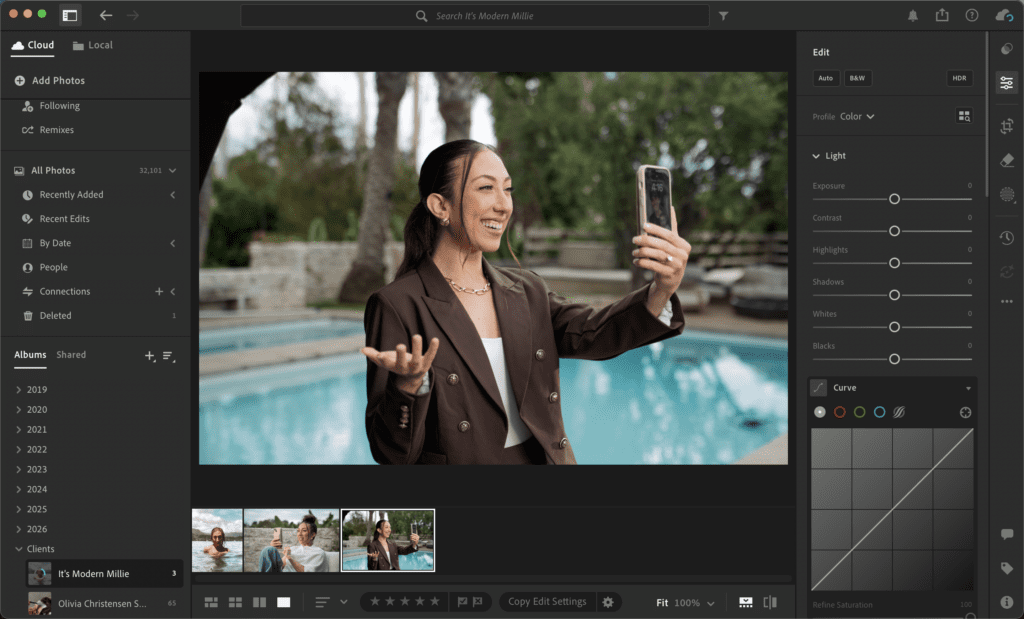
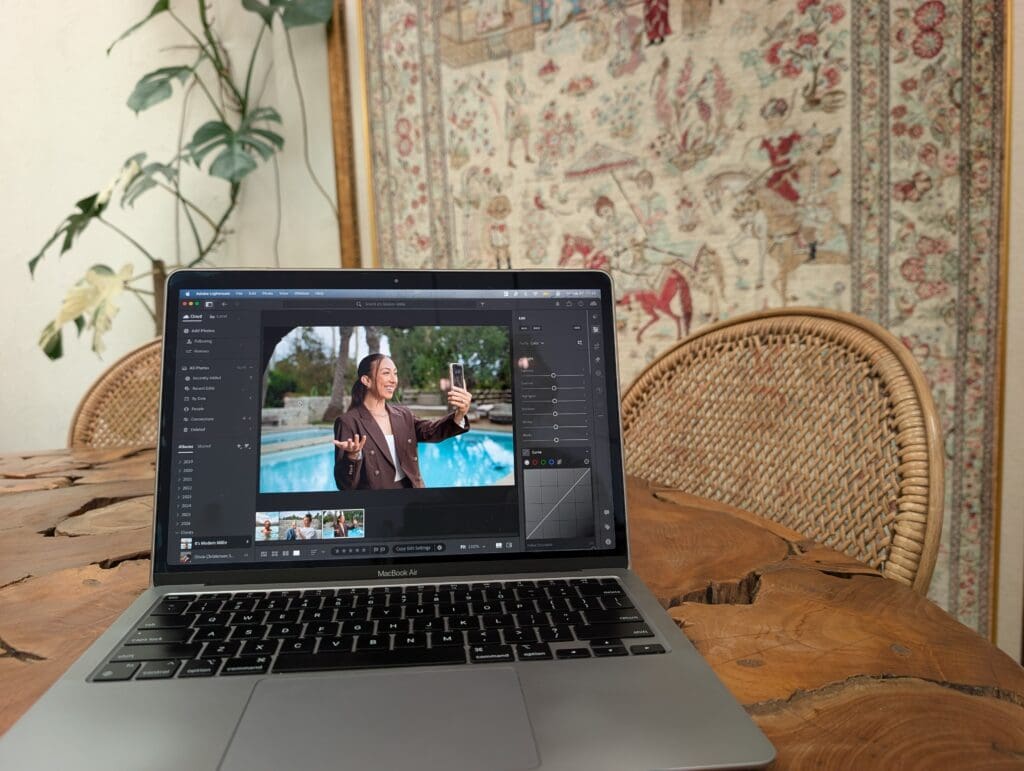
Best Overall Photo Editing Tool
Adobe Lightroom
Adobe Lightroom remains one of the most widely used photo editing tools for creators and photographers. It offers a strong balance between professional editing controls, AI-assisted adjustments, and efficient batch workflows. Lightroom works across desktop and mobile devices, making it a reliable choice for creators who want consistent, high-quality edits without a complex editing process.
Best for: Creators and photographers who want a powerful editing tool that can scale with their skill level.
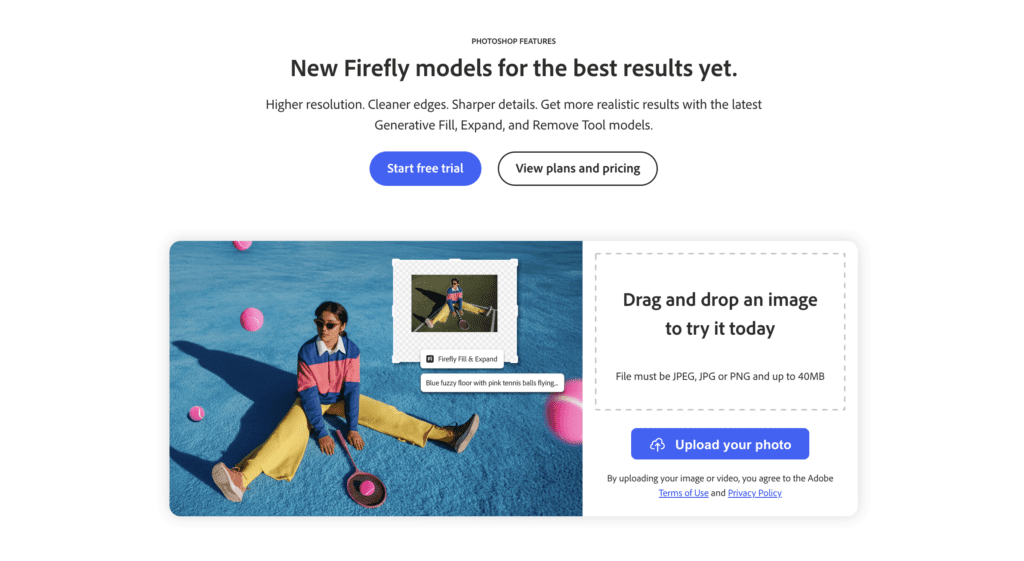
Best AI Photo Editing Tool
Adobe Firefly (inside Photoshop)
Adobe Firefly is Adobe’s generative AI system built directly into Photoshop. It powers tools like Generative Fill, background expansion, and AI object removal, allowing creators to make complex edits quickly while still maintaining full creative control. Firefly is designed to assist traditional editing workflows rather than replace them.
Best for: Creators experimenting with AI-powered editing while maintaining professional editing control.
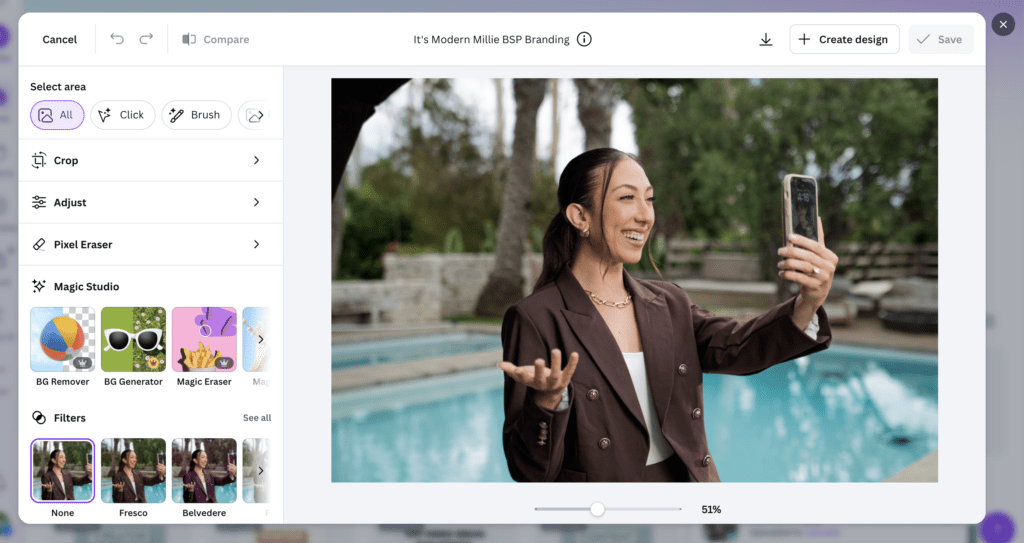
Best Free Beginner Tool for Photo Editing
Canva (the Free Version)
Canva offers a capable set of photo editing and design tools within its free plan. It provides functionality for quick adjustments, background removal, overlays, and social-media-ready graphics.
However, it is best suited for simple or template-driven workflows, and is not designed for advanced editing, compositing, or professional-level image control.
Best for: Beginners, small business owners, and creators who need fast edits without paid software.
Best Mobile Photo Editing App
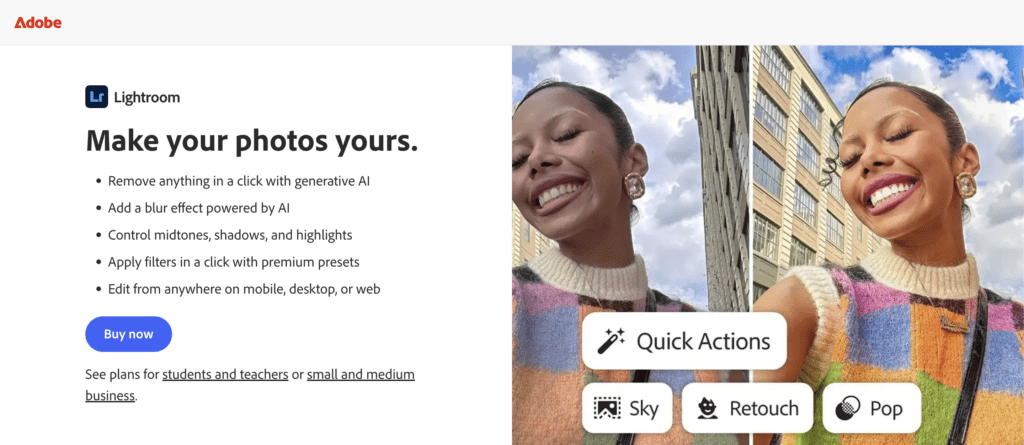
Lightroom Mobile
Lightroom Mobile brings professional editing tools to smartphones and tablets. It includes advanced exposure controls, color grading, presets, and AI-powered masking features. Because it syncs with the desktop version of Lightroom, creators can edit photos on the go while maintaining a consistent workflow.
Best for: Mobile-first creators who want professional editing capabilities on their phone.
Best Photo Editing Tool for Beginners
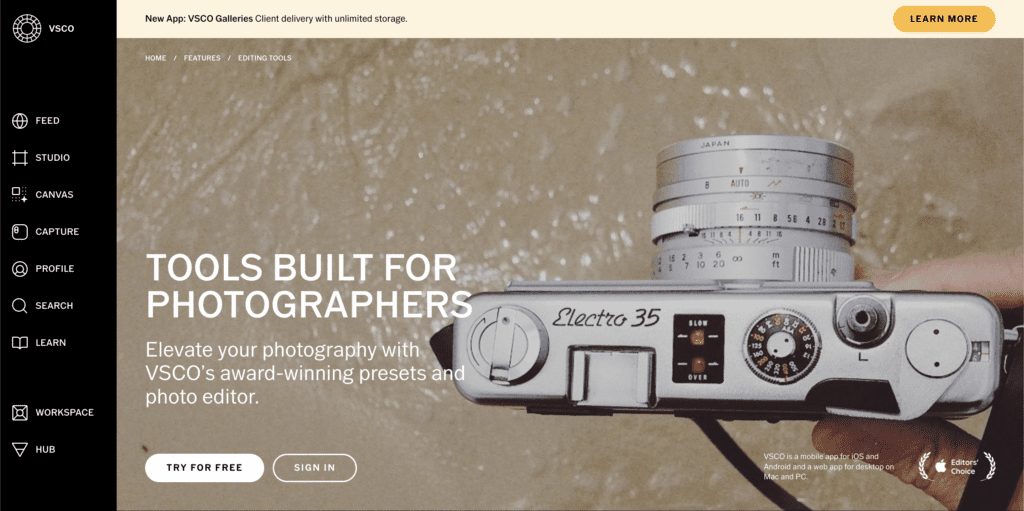
VSCO
VSCO is a mobile-first editing app known for its high-quality preset filters and simple editing tools. The app allows creators to apply cohesive aesthetic styles quickly without learning complex editing techniques. Many creators use VSCO to develop a consistent visual style when they first begin creating content.
Best for: New creators who want easy, aesthetic edits without a steep learning curve.
Best Professional Photo Editing Software
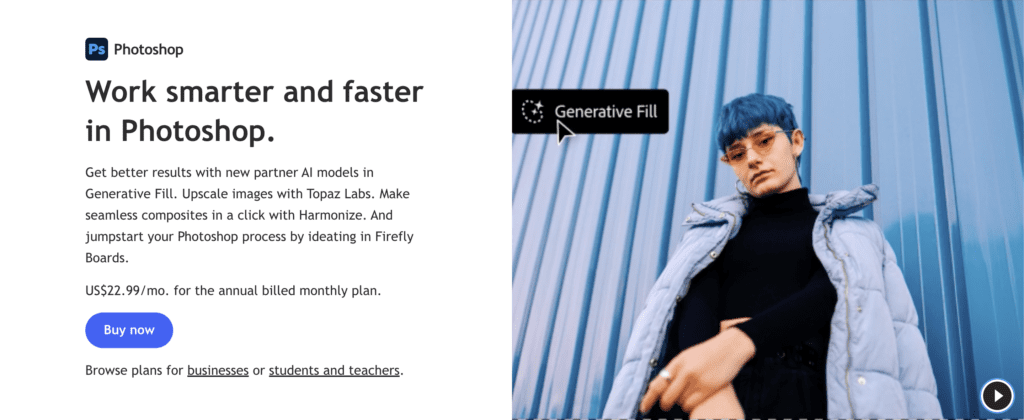
Adobe Photoshop (With Firefly)
Adobe Photoshop remains the industry standard for advanced photo editing. Its layer-based editing system allows for detailed retouching, compositing, and image manipulation. With the addition of Firefly-powered generative AI tools, Photoshop now combines precision editing with AI-assisted workflows.
Best for: Professional photographers, designers, and advanced creators who require full creative control.
Best Free Photoshop Alternative
GIMP
GIMP is a powerful open-source photo editing software that offers many of the same core capabilities as professional tools like Adobe Photoshop, including layer-based editing, advanced selections, masking, and retouching tools. While its interface is less modern and it lacks built-in AI features found in newer platforms, it remains one of the most capable free photo editing tools available.
Best for: Creators and photographers who want advanced editing capabilities without paying for subscription software.
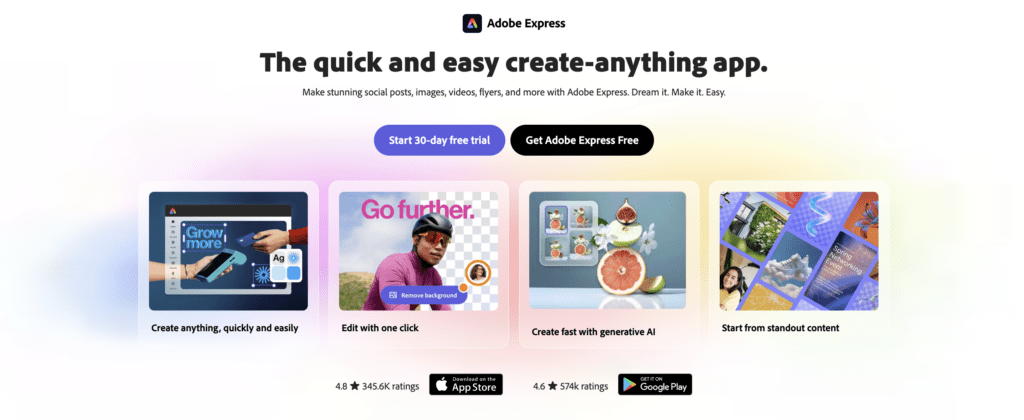
Best for Quick and Easy Social Media Edits
Adobe Express
Adobe Express is a lightweight design and editing platform designed for speed. It combines templates, quick photo editing tools, and AI-powered design features to help creators produce social media graphics, thumbnails, and promotional visuals quickly.
Best for: Creators who need fast, polished graphics and social media content.
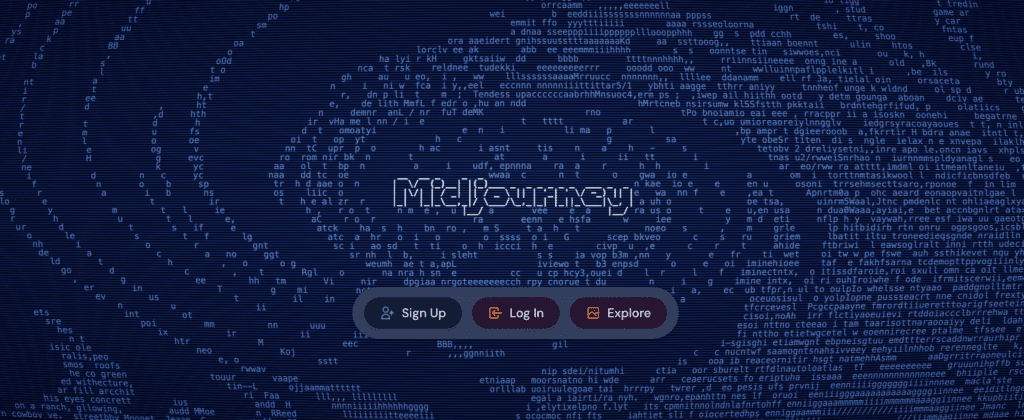
Best AI Image Generation (Not Editing)
Midjourney
Midjourney is an AI image generation platform that creates new visuals from text prompts.
It is best used for:
- concept art
- mood boards
- early-stage creative exploration
However, Midjourney is not a photo editing tool and is typically used alongside tools like Photoshop or Adobe Express for refinement and final output.
Best for: Creative ideation, concept visuals, and AI-generated imagery.
Key Insight
Most creators are not relying on a single tool. Instead:
- AI tools support ideation and experimentation
- Editing tools handle refinement and production
The most effective workflows combine both, with professional editing tools used for the final output. This is why I love the Adobe Ecosystem so much. It combines every tool that you need in your workflow and gives you one easy place to work from.
Photo Editing Tools Comparison Overview
| Tool | Best For | Skill Level | Platform | Starting Price | AI Features |
| Adobe Photoshop + Firefly | Professional editors and full production workflows | Advanced | Desktop, Web | ~$22.99/mo | Generative Fill, object removal, expand |
| Adobe Lightroom | Overall / batch editing | Beginner–Pro | Desktop, Mobile, Web | ~$9.99/mo | Masking, subject select, sky detection |
| Canva | Beginner | Social graphics, beginners | Web, Mobile | Free / ~$15/mo | Background remove, Magic Edit, text-to-image |
| GIMP | Free professional editing | Advanced | Desktop only | Free | Plugin-based only |
| Adobe Express | Fast branded content | Beginner | Web, Mobile | Free / included w/ CC | Firefly generative, background replace |
| VSCO | Mobile aesthetic editing | Beginner–Mid | Mobile only | Free / ~$29.99/yr | Tonal adjust, AI Lab object removal |
| Midjourney | AI image generation | Beginner–Mid | Web (Discord) | ~$10/mo | Fully generative, text-to-image |
Best Photo Editing Tools in 2026 (Quick Answer)
- Best Overall Photo Editor: Adobe Lightroom
- Best Professional Photo Editing Software: Adobe Photoshop + Firefly
- Best Beginner-Friendly Photo Editor: Canva
- Best Social Media Content Editor: Adobe Express
- Best Mobile Photo Editing App: VSCO
- Best Free Photoshop Alternative: GIMP
- Best AI Image Generation Tool: Midjourney
Individual Photo Editing Tool Reviews (Deep Dives)
Now I’m going to take you on a deep dive into each of these tools to help you decide which is best for you, at this stage in your creator journey and business. From intensive photo editing to free, easy-to-use options, these are the best photo editing and AI tools.

Adobe Photoshop + Adobe Firefly
What it is
Adobe Photoshop is the industry-standard photo editing software that is used by professional photographers, designers, and many content creators. It’s been around for a long time, but it also has a steeper learning curve than other photo editing software. Adobe Firefly is Adobe’s generative AI tool, now deeply integrated into Photoshop. The idea is to enhance, not replace, your traditional Photoshop editing workflows.
Who it’s best for
Adobe Photoshop and Firefly are best for professional creators, photographers, designers, and content creators who want to have maximum control over their images, with AI-assisted speed in editing. It’s a strong tool for content creators who already have experience with photo editing or want to ensure they maintain strong quality control over their edits.
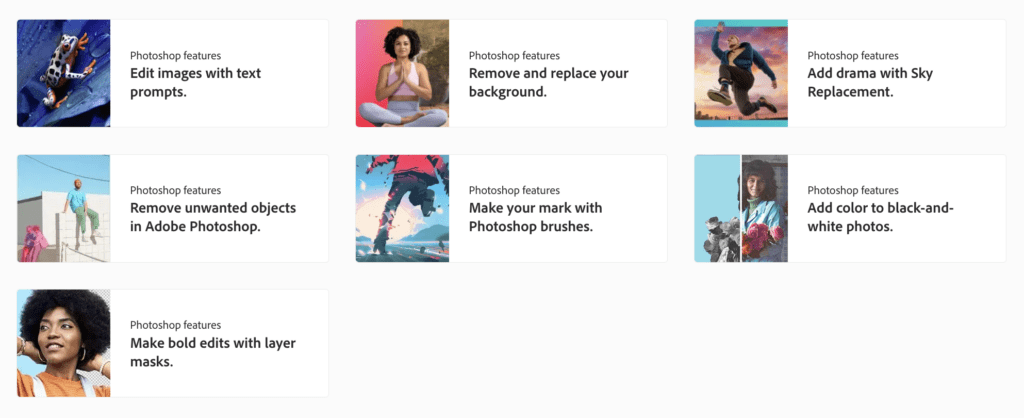
Key features
- Advanced layer-based editing
- Masking and selection tools
- Retouching, compositing, and manipulation
- Smart object workflows
- Extensive plugin ecosystem

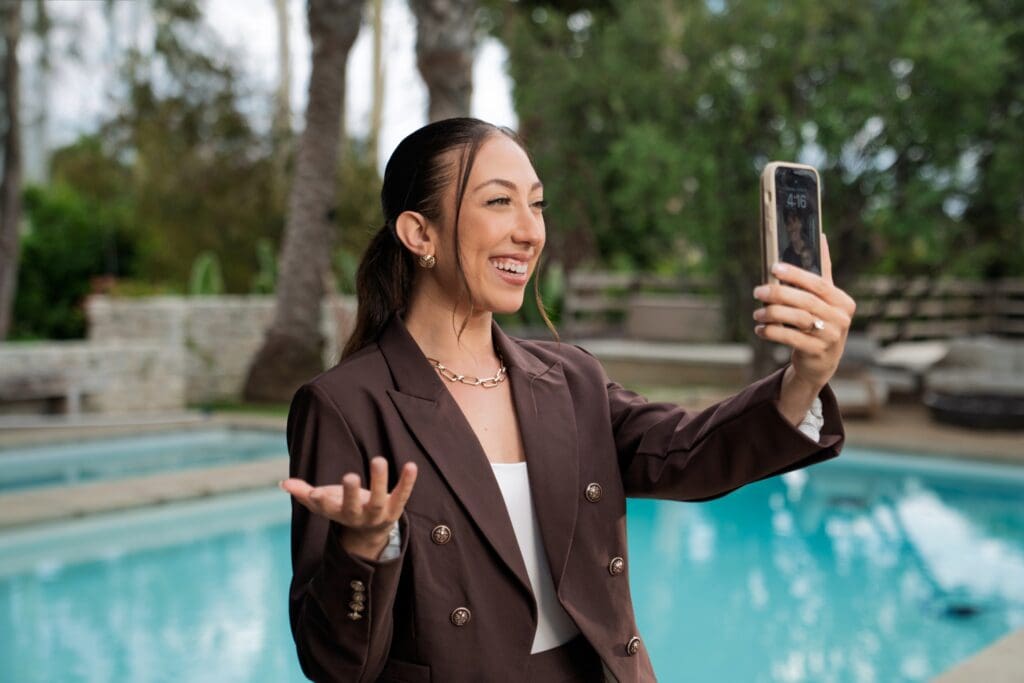
Before & After Firefly Object Removal (removed black area in the top left corner)
AI capabilities
Adobe Firefly powers features like Generative Fill, background expansion, object removal, and content-aware edits. Firefly is trained on licensed and public-domain content, which means it is commercially safe for brand work and client projects. This is definitely something to be aware of if you plan on using any AI photo editing tool in your collaborations.
Platforms
Desktop (Windows & macOS)
Pricing
Subscription-based via Adobe Creative Cloud (Photography Plan or All Apps plan)
Strengths
- Unmatched creative control
- Trusted industry standard
- Commercially safe AI tools
- Scales from simple edits to complex composites
Limitations
- Steeper learning curve
- Subscription cost
- Overkill for simple edits
When to use it
Photoshop is the best tool when you need full creative control. If you’re looking for a tool for advanced retouching, brand collaborations, thumbnails, ads, or another project where precision really matters, this tool is the one. For creators who are producing high-end content or client work, Photoshop remains the gold standard.
If you’re just getting started as a content creator, it might be too much in the beginning.
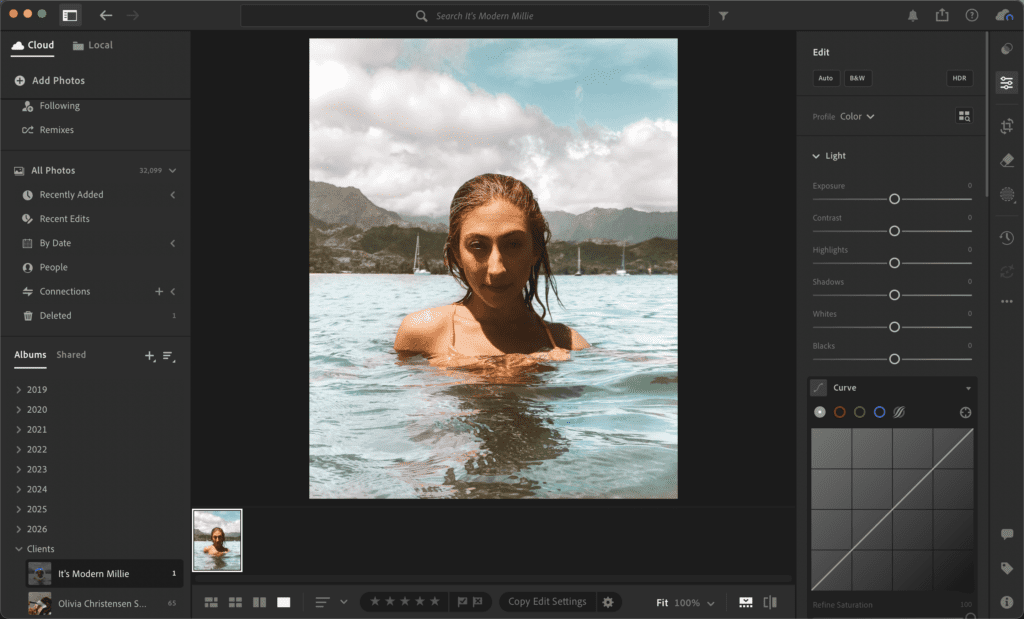
Adobe Lightroom (Desktop & Mobile)
What it is
Adobe Lightroom is a photo-first editing tool designed to enhance, organize, and batch-edit photos efficiently, with a consistent aesthetic and feel. Unlike Photoshop, Lightroom focuses on non-destructive, global adjustments, rather than heavy manipulation. I often think of Lightroom as the tool you’d use to adjust the feel of your photo, rather than actually changing the photo itself, like a preset instead of a full-blown edit.
Who it’s best for
Lightroom is a great tool for photographers and content creators who want to prioritize consistent edits, presets, and an efficient workflow. If photography is a big part of your creative business, Lightroom is a great tool for anyone wanting to offer presets to their audience. And it’s easier and quicker to learn than Photoshop.
Key features
- Non-destructive editing
- Presets and profiles
- Batch editing
- Color grading and exposure controls
- Photo organization and tagging
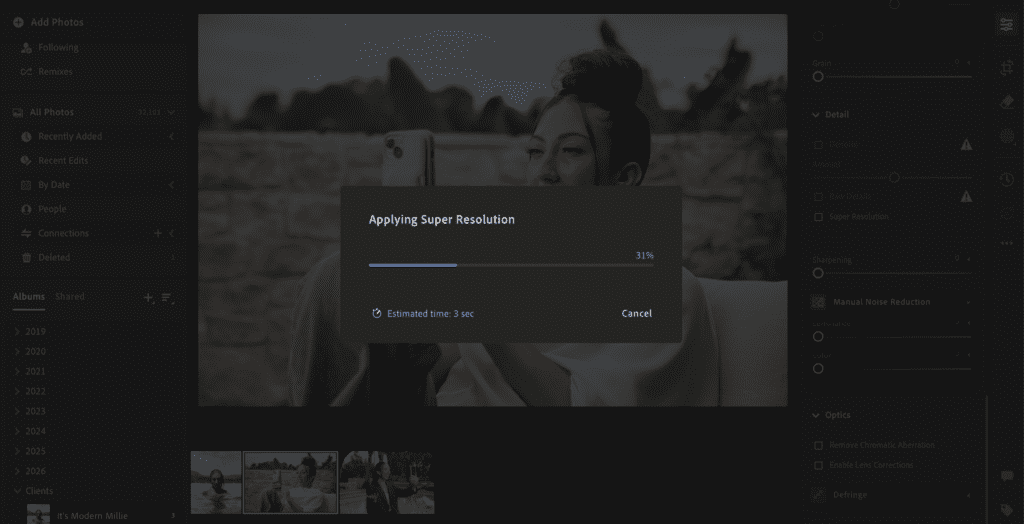
Applying Super Resolution with Adobe Lightroom (AI Feature)
AI capabilities
There are still very powerful AI tools within Lightroom, but their focus is more on enhancing your photos and improving quality. You can use AI masking, subject selection, sky detection, quality enhancement, and adaptive presets to streamline your editing without sacrificing quality.
Platforms
Desktop, mobile, and web (which all sync together nicely, meaning you can edit at home or on the go).
Pricing
Subscription-based (Adobe has several plans that allow you to use Lightroom)
Strengths
- Fast, intuitive photo editing
- Excellent for large photo libraries
- Mobile and desktop sync
- Preset-driven consistency
Limitations
- Limited manipulation tools
- Not ideal for composites or design-heavy projects
When to use it
Lightroom is an excellent tool for travel creators, photographers, and creators who frequently edit on their phones and want consistent, high-quality results.

Adobe Express
What it is
Adobe Express is a design and content creation tool that’s built for creators who want fast, polished edits without needing advanced design skills. Think of it as Adobe’s Canva. It’s a lightweight, creator-first platform that combines templates, brand kits, and AI-powered tools into one easy workflow. Unlike Photoshop or Illustrator, Adobe Express focuses on helping content creators with speed, consistency, and social media-ready designs rather than total photo manipulation.
Who it’s best for
Adobe Express is best for content creators, small business owners, and social media managers who want professional graphics, short-form visual and light photo edits, without a huge learning curve. It’s super valuable for creators who still want Adobe-level quality and AI tools but don’t need complete creative control.
Key features
- Professionally designed templates for social posts, stories, thumbnails, and ads
- Brand kit to store your fonts, colors, and logos
- Quick photo editing tools (crop, resize, adjust, remove background)
- One-click resizing for multiple platforms
- Built-in scheduling and content planning (depending on plan)
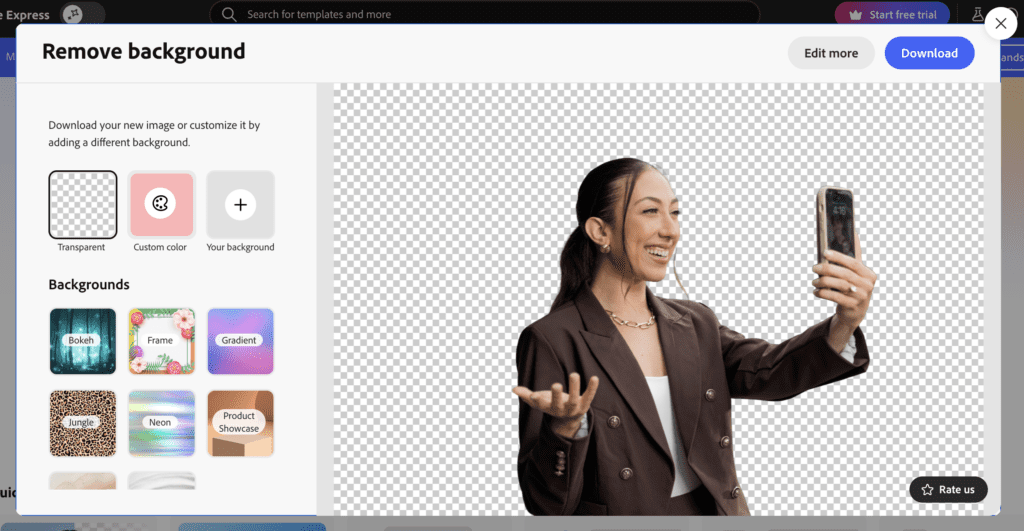
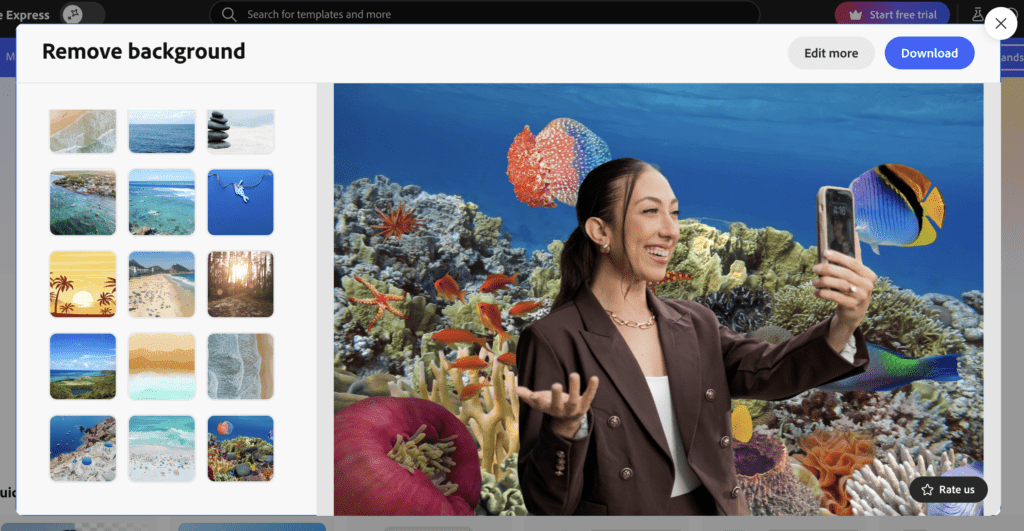
Background Remove and Replace in Adobe Express
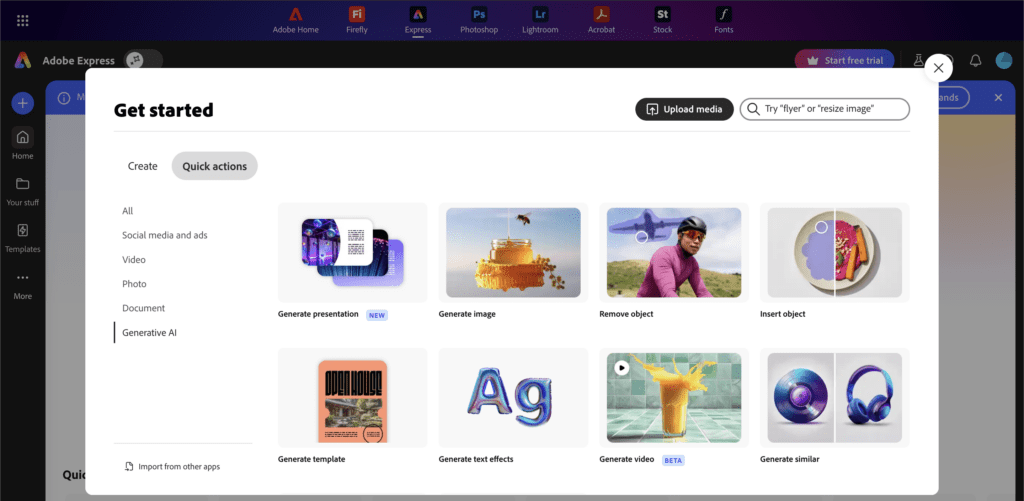
AI capabilities
Adobe Express also uses Adobe Firefly, making it one of the more accessible ways for creators to safely use generative AI. You can generate images from text, remove or replace backgrounds, expand images, and apply AI-powered text effects. I’ll note again that Firefly is trained on licenses and public-domain content, which makes it safer for brand work than other standalone AI tools.
Platforms
Desktop, mobile, and web (which again, all sync together, meaning you can edit at home or on the go).
Pricing
Adobe Express has a free plan with basic templates and tools. With a subscription, you can use premium features like more templates, brand kits, and have access to Firefly credits.
Strengths
- Extremely beginner-friendly
- Fast, social-first workflows
- Strong AI tools without complexity
- Commercially safe generative AI
- Ideal companion to Photoshop and Lightroom
Limitations
- Not designed for advanced photo manipulation
- Less creative flexibility than Photoshop
- Template-based by design (which may feel limiting for some creators)
When to use it
Adobe Express is perfect for content creators who want quick, high-quality social media content, thumbnails, brand graphics, and promotional visuals, especially when speed matters. It’s an awesome choice for everyday content creation, brand collaborations, and creators who want to work within the Adobe ecosystem without learning more complex tools.
Canva
What it is
Next up, we have Canva! You’re probably already familiar with this tool, as it’s one I’ve talked about before. But if you’re totally new around here, Canva is a browser-based design and photo editing tool. It’s built for speed and accessibility. Canva blends basic photo editing with graphic design, making it very popular with social media creators.
Who it’s best for
Canva is definitely a great tool for beginners, social media creators, and small businesses creating a wide range of content very quickly. You can use Canva to do so much more than just photo editing, so if you want all your content and designs in one place, this tool could work for you.
Key features
- Drag-and-drop editor
- Templates for social, ads, and downloads
- Basic photo adjustments
- Brand kits
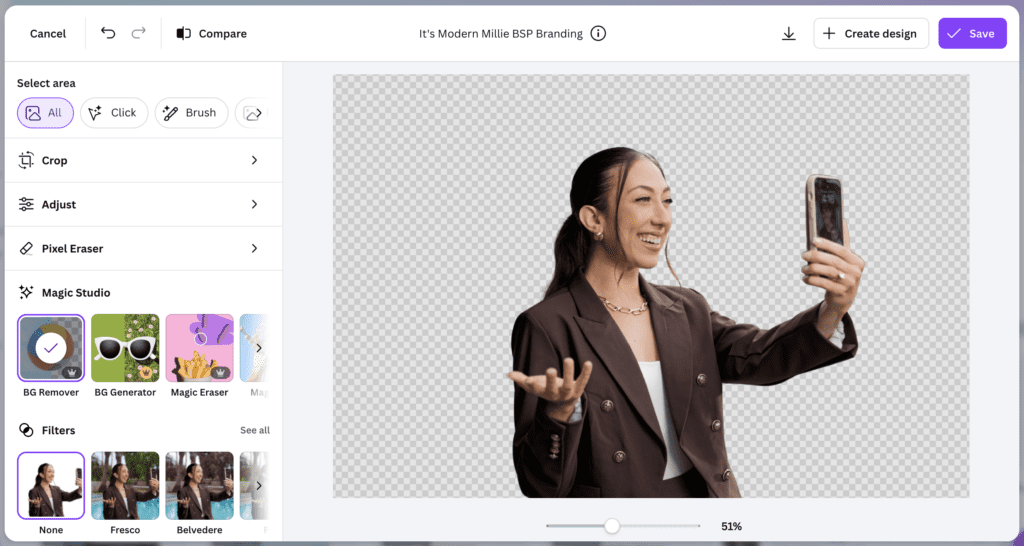
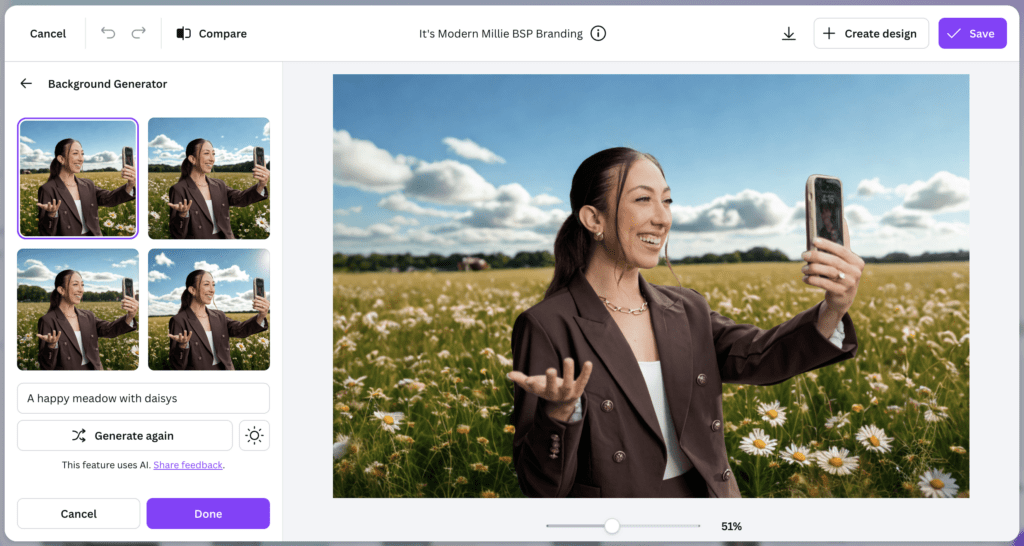
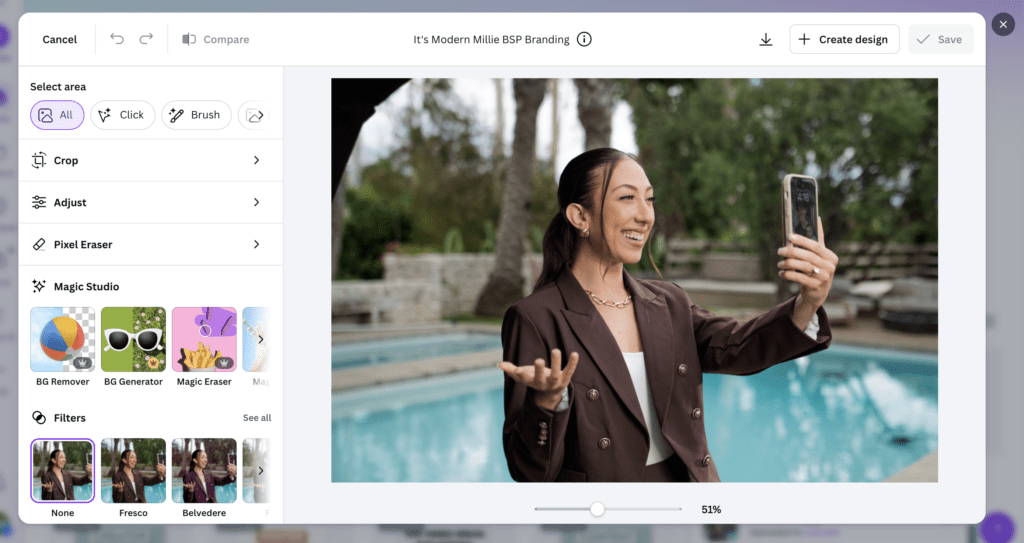
Background Remove and Replace in Canva (Using Generative AI for Background Fill)
AI capabilities
With Canva AI, you can remove backgrounds, do Magic Edits, text-to-image generation, and get layout suggestions. When I experimented with the Canva AI tool, it worked as your design assistant, helping you work faster and make creative decisions more easily.
Platforms
Web, desktop app, mobile app (however, I would say it’s the easiest to use in a web browser).
Pricing
A free plan is available, but you’ll need a Pro subscription to access all features.
Strengths
- Extremely easy to use
- Fast content creation
- All-in-one design + editing
Limitations
- Limited creative control
- Not suitable for professional photo work
When to use it
Canva is perfect for straightforward photo editing and creating social graphics, templates, and downloads for other areas of your content-creator business. Anything that you can do in Canva, you can usually do in Adobe Express. Canva is best for simple, template-based workflows, while Adobe Express connects directly into a broader professional ecosystem.
GIMP
What it is
GIMP stands for GNU Image Manipulation Program. It’s a free, open-source photo editing software that offers powerful image manipulation tools, similar to Adobe Photoshop. It’s a fully manual editor, designed for creators who want deep control over their photos. Unlike newer tools, GIMP focuses on traditional editing workflows such as layers, masks, selections, and retouching.
Who it’s best for
GIMP is best for photographers, creators, and designers who want a no-cost alternative to Photoshop and are willing to invest the time to learn a more technical interface. It’s especially appealing to photographers who prioritize control and customization over speed or automation.
Key features
- Layer-based editing
- Advanced selection tools and masks
- Retouching, cloning, and healing tools
- Color correction and adjustment layers
- Plugin and script support for extended functionality
- Customizable interface and shortcuts
AI capabilities
On its own, GIMP has very limited AI functionality compared to modern creative tools. However, its open-source nature allows you to install third-party plugins that add AI-powered features such as background removal or object selection. While these tools can be powerful, they require manual setup and are not seamless or beginner-friendly.
Platforms
Desktop only (Windows, macOS, Linux).
Pricing
Completely free and open source. No subscriptions, licensing fees, or usage limits.
Strengths
- Free, professional-grade editing capabilities
- Strong layer and masking system
- Highly customizable through plugins and scripts
- Active open-source community
- No vendor lock-in or subscription commitment
Limitations
- Steep learning curve, especially for beginners
- Dated interface compared to modern tools
- Limited built-in AI tools
- Desktop-only (no mobile or cloud sync)
- Slower workflows for high-volume or social-first creators
When to use it
GIMP is really only a solid choice when you need advanced photo manipulation, but you don’t want to invest in paid software. It works well for creators or photographers who are doing detailed edits, composites, or retouching on a budget, especially if you already have Photoshop experience.
VSCO
What it is
VSCO is a mobile-first photo editing app designed for quick, clean edits, with an emphasis on mood, tone, and aesthetic consistency. It’s best known for its presets, which let creators transform their photos with just a few clicks. VSCO isn’t about heavy manipulation or design work; it’s about refining your photos and giving them a polished, cohesive look.
Who it’s best for
VSCO is an awesome tool for creators who primarily edit on their phones and care deeply about aesthetic consistency. It’s very popular with lifestyle, fashion, travel, and personal brand creators who want their content to feel curated without spending too much time on editing. If you don’t want to learn a complex tool but still want elevated photos, VSCO is a strong choice.
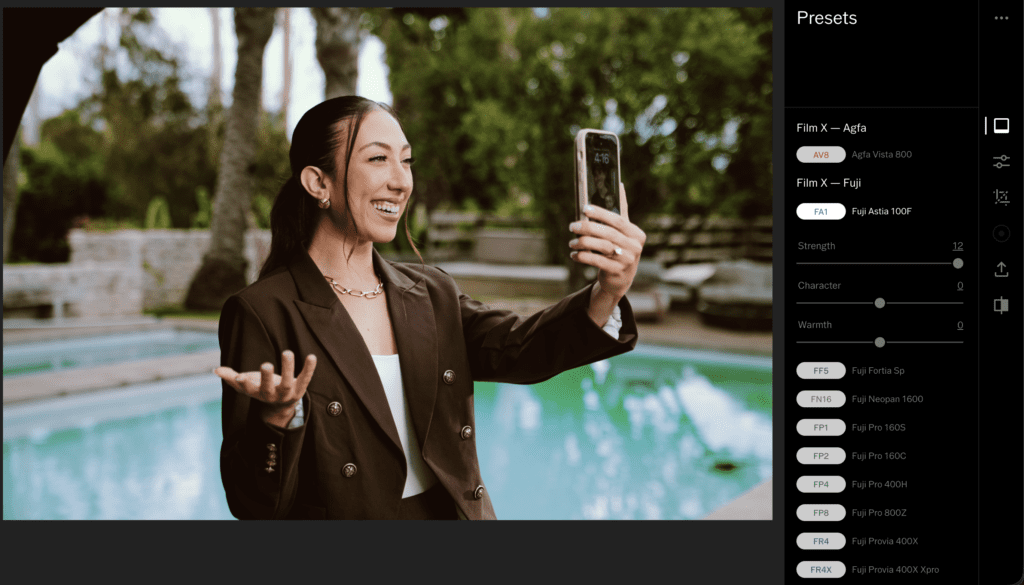
VSCO Film Filters
Key features
- High-quality preset library (film-inspired looks)
- Basic exposure, contrast, color, and grain controls
- Skin tone and highlight/shadow adjustments
- HSL (Hue, Saturation, Lightness) tools
- Minimal interface designed for fast edits
- Built-in camera with manual controls

VSCO AI Capabilities are available on iOS
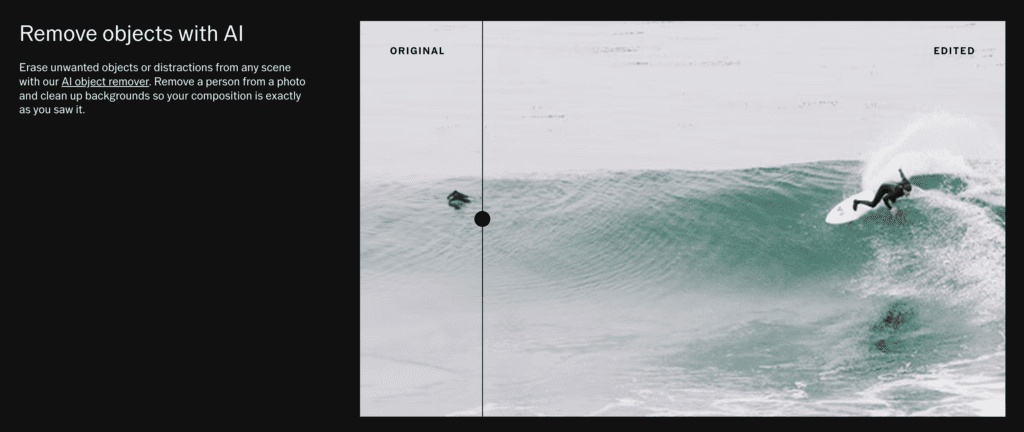
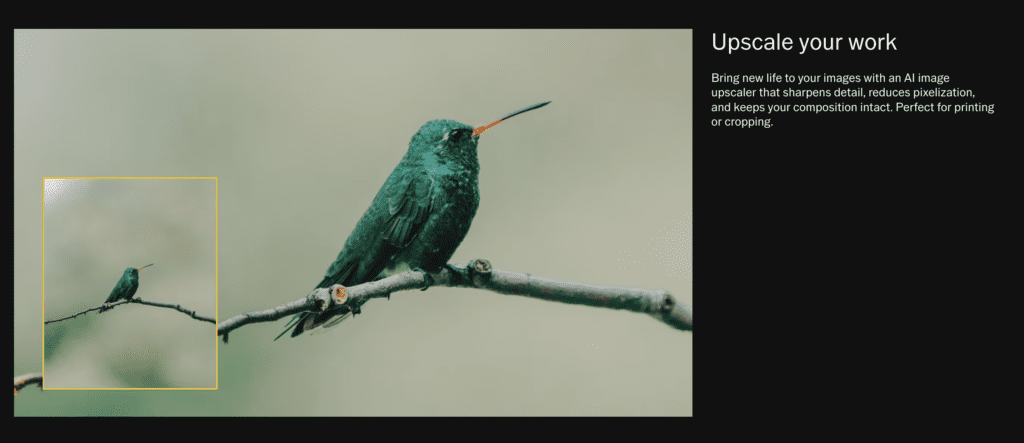
Examples of VSCO AI Capabilities
AI capabilities
VSCO’s AI features are subtle compared to those of other tools. The app focuses more on intelligent presets and adaptive adjustments than on generative AI. Some newer features can help you automate tonal balancing and improve your image quality, and in VSCO’s latest AI Lab update, you can now do some AI generation, object removal, or background replacement.
Platforms
Mobile only (iOS and Android).
Pricing
Freemium model.
- Free plan with limited presets and tools
- Paid membership unlocks the full preset library and advanced editing tools
Strengths
- Extremely easy to use
- Fast, mobile-first workflow
- Strong aesthetic consistency across content
- Ideal for creators who value “vibe” over technical precision
- Low friction for daily posting
Limitations
- No desktop version
- Limited editing controls compared to professional tools
- No advanced AI features or generative tools
- Not suitable for composites, retouching, or design-heavy projects
When to use it
VSCO is best used when you want quick, beautiful edits that feel cohesive across your feed without overthinking the process. It’s a great choice for creators editing Instagram photos, travel content, or lifestyle pictures on the go. If your goal is speed and aesthetics, VSCO does exactly what you need.
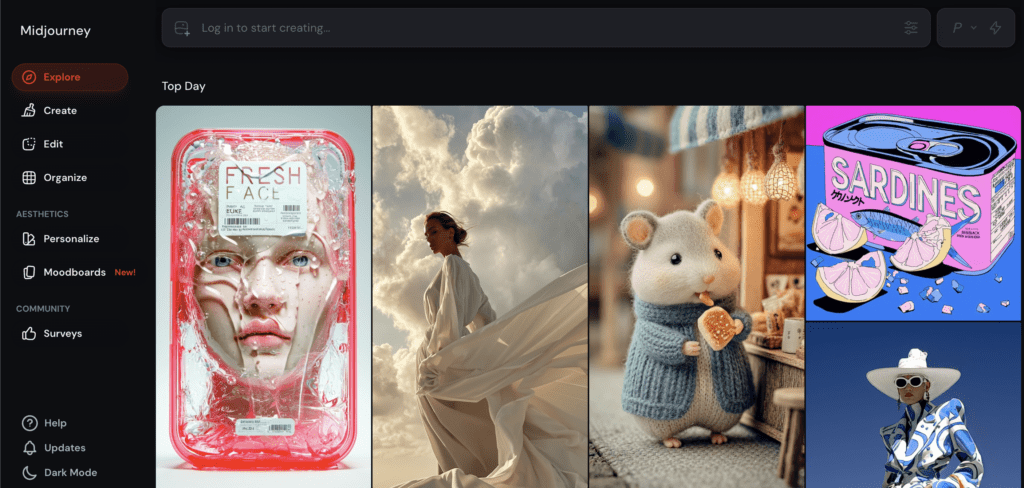
Midjourney
What it is
Yes, Midjourney is not a photo editing tool, but it’s still the most talked-about AI image generation tool, which is why I’ve still included it in this guide. Unlike the traditional photo editing tools I’ve been talking about in this guide, Midjourney does not edit your existing photos in a granular, non-destructive way. Instead, this tool generated entirely new images based on your creative direction, style preferences, or descriptive prompts. You can think of this tool as a creative ideation and image creation tool, not a replacement for photo editing software.
Who it’s best for
I would say that Midjourney is best for creators, designers, and marketers who want to generate visual concepts, mood boards, campaign ideas, or stylized images very quickly. It can be useful for creators who need visuals for inspiration but don’t need photorealistic accuracy or fine control over specific edits.
If you enjoy creative direction and prompt-writing, Midjourney can be a powerful addition to your workflow.
Key features
- Text-to-image generation using detailed prompts
- Style and aesthetic control through prompt parameters
- Image variations and upscaling
- Reference image support for style guidance
- Aspect ratio and composition controls
- Community-driven prompt inspiration
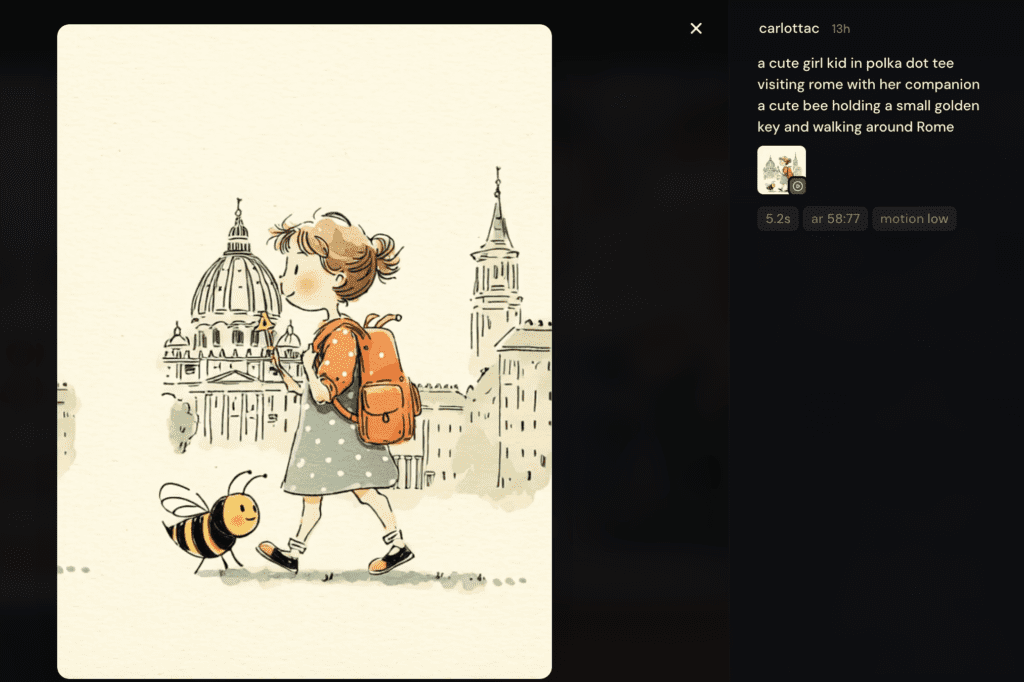
Midjourney Example: Prompt and Result
AI capabilities
Midjourney is the only tool I’ve shared today that’s entirely powered by AI. It’s great at generating stylized, artistic, and visually striking images from scratch. Its strength is creation, not correction.
Platforms
Web-based interface with no native desktop or mobile editing apps, though images can be downloaded and edited elsewhere.
Pricing
Subscription-based with tiered plans depending on usage and generation speed. Pricing varies based on how many images you generate and how fast you want results.
Strengths
- Extremely high-quality AI-generated imagery
- Strong artistic and stylistic outputs
- Fast ideation for creative projects
- Excellent for concept art, branding inspiration, and thumbnails
- Encourages creative experimentation
Limitations
- Not a photo editor
- Limited control over precise details
- Learning curve for prompt writing
- Images may not always be commercially usable, depending on the plan and licensing terms
- Requires pairing with editing tools for refinement
When to use it
Midjourney is best used at the idea generation stage of your creative workflow or process. It’s ideal for creating concept visuals, campaign inspiration, or stylized social graphics that you’ll later refine in tools like Photoshop, Express, or Canva. For creators who want to move fast from idea to visual, Midjourney can drastically shorten the brainstorming phase, but it works best alongside photo editing software, not instead of it.
Midjourney is powerful for ideation, but it is not a replacement for editing tools like Photoshop.

How Photo Editing Has Changed for Creators
As content creators, we are producing more content than ever before. Our audiences expect consistency, brands expect high-quality content, and platforms reward us for posting more frequently. All of this increased demand is exactly where AI-powered photo editing tools can make a meaningful difference, helping creators keep up without burning out.
I’ve seen my own workflow evolve as content demands have increased, and the goal isn’t to create faster at the expense of quality. The goal is to create more efficiently while maintaining your high standards. When used correctly, AI photo editing tools can support that balance by speeding up repetitive tasks, enhancing edits, and freeing up time for creative decision-making.
And when it comes to choosing the best photo editing app, popularity and hype don’t matter nearly as much as use cases. The best tool is simply the one that fits the project you’re working on.
In this guide, I want to help you identify:
- The best photo editing tools for beginners
- The best AI-powered photo editing tools
- The best professional photo editors
- The best mobile and quick-edit options

How to Choose the Right Photo Editing Tool for You
So with all of this information, how do you choose the right photo editing tool for you? There are so many tools out there, all doing similar things but with different prices and different features. If you want a tool that’s going to grow with you, I would consider the Adobe suite, since you can start simple with Lightroom and Adobe Express and work your way into more complex tools. But if you want something simple to learn, check out Canva or VSCO, and if you’re in need of a free yet powerful Photoshop alternative, definitely look into GIMP.
If you’re still not sure what photo editing tool is right for you. Here are some things you can do to help you decide.
Ask Yourself These Questions
- Are you editing real photos or creating images from scratch?
- Do you need speed or precision?
- Do you prefer mobile or desktop?
- Is this for a hobby or professional work?
- Do you have budget constraints?
Best Photo Editing Tools by Creator Type
| Creator Type | Tool Recommendation |
|---|---|
| Instagram creators | VSCO, Canva |
| Travel bloggers | Lightroom, Adobe Express |
| Photographers | Lightroom, Photoshop + Firefly |
| Designers | Photoshop, Adobe Express |
| Small business owners | Canva or Adobe Express |

Common Mistakes Creators Make with Photo Editing Tools
As you can see from this guide, photo editing and AI tools are more powerful than ever. And these tools offer creators more control and creativity than we’ve ever seen before. But, as the saying goes, this power also brings new responsibility and pitfalls. Here’s what I recommend that creators watch out for:
1. Overusing AI
These AI tools can do amazing things to enhance our workflows as creatives, but relying too much on them can strip your work of its uniqueness. Over-edited images can look artificial, and you can end up losing the authenticity that helps you connect with your audience.
How to Avoid It:
- Use AI as a starting point, not the final step. Always review and tweak AI-generated results.
- Preserve natural textures and lighting. AI should enhance, not replace, your creative vision.
- Experiment with manual adjustments to keep your style distinct.
Remember, AI in photo editing is most valuable when it enhances existing tools rather than replacing them.
2. Choosing Tools That Are Too Complex
It’s easy to want the latest, feature-packed tool. However, if the learning curve is too steep, you might spend more time trying to figure out the tool than actually creating anything. These tools should always be used to enhance your workflow, not add to your to-do list.
How to Avoid It:
- Match the tool to your skill level and needs. Beginners should start with user-friendly options like Canva or VSCO.
- Look for tools with intuitive interfaces and good tutorials.
- Remember: complexity doesn’t always equal better results.
3. Ignoring Workflow Efficiency
There is definitely something to be said for using tools within the same ecosystem, like Adobe. Jumping between apps and tools, using inconsistent file formats, and misorganizing assets can slow you down and lead to more frustration.
How to Avoid It:
- Streamline your process: use presets, batch editing, and keyboard shortcuts.
- Organize your files and use cloud storage for easy access.
- Consider all-in-one platforms if you’re juggling too many tools.
4. Paying for Tools You Don’t Need
We all know that subscription fatigue is real. I see this a lot with new creators; they pay for all the advanced features on multiple tools that they rarely use or don’t yet know how to use.
How to Avoid It:
- Audit your toolkit regularly. Cancel subscriptions for tools you don’t use.
- Take advantage of free trials and freemium versions before committing.
- Look for budget-friendly alternatives that meet your needs.
Photo editing and AI tools should be here to empower your creativity and help you work smarter and more efficiently. If you can avoid these common mistakes, you’ll be able to save time, money, and creative energy, which will allow you to spend more time actually creating.
This is something to keep in mind, while Adobe might seem like the most expensive tool in this guide, it’s also the only tool that gives you everything you need in one ecosystem for both photo editing and video editing. So if you notice a lot of subscriptions adding up, it might be worth investing in one tool that can handle everything you need.

Frequently Asked Questions
Is Adobe Photoshop + Firefly Worth It?
Is Adobe Photoshop worth it? I would say that this depends on where you’re at in your creator journey. If you’re a new creator who still has a lot to learn about photography, brand collaborations and content creation, then I would say no, Adobe Photoshop is not worth it. However, if you’re a creator that’s starting to work on high level brand collaborations and you’re constantly needing to create professional content for brands to use, then yes, Adobe Photoshop is worth it.
I recommend thinking about how important photography is to your creator business, and how much time you have to learn a new tool. Adobe Photoshop is the industry standard for professional photography, so when you’re ready to uplevel and invest, this would be the tool I recommend.
What is the best photo editing tool for beginners?
Canva and Adobe Lightroom are really great starting points for their user-friendly interfaces and guided tutorials. If you want to build a consistent aesthetic, create social graphics and downloads to accompany your content, and avoid a steep learning curve, these tools are a great place to start.
Is AI photo editing better than Photoshop?
AI tools are great for speed and automation (i.e., sky replacement or one-click enhancements), but Photoshop still offers unmatched precision and control for advanced editing. Plus, with Firefly and Photoshop, you have all the tools you need to work smarter and produce incredibly high-quality content.
Can AI replace photo editing software?
AI can handle repetitive tasks and basic edits, but human creativity, context, and artistic judgment are irreplaceable. AI should be used as your assistant, not a substitute for skilled editing.
What tools do professional creators use?
Professionals often use Adobe Photoshop, Lightroom, and Adobe Firefly for their workflows and creativity. There’s a lot to be said for the fact that the Adobe Suite of creative tools is still the most widely used across the creative industry.
Are there free photo editing tools worth using?
Yes! As I shared earlier in this guide, GIMP is a free alternative to Photoshop, and you can also use Canva and VSCO in their free plans.
How do I choose the right tool for my needs?
Consider your skill level, budget, and the type of editing you do most (e.g., retouching, color grading, batch processing). Start with free trials of these tools to test before committing.
Can I use AI tools for collaborations?
Most AI tools allow commercial use, but always check the license terms for restrictions, especially regarding AI-generated elements.
Final Thoughts: The Best Photo Editing Tool Is the One That Fits Your Workflow
At the end of the day, the best photo editing tool isn’t always the most popular one. It’s the one that fits your workflow, your skill level, and the kind of content that you’re creating right now. I actually use a mix of several tools in my own business, and I’ve worked with almost every tool in this guide at different stages in my career. My team currently relies on Adobe for many projects, we still use Canva, and when I was first starting out, VSCO was where all of my photo editing happened.
Also, your tools don’t have to be permanent. As your skills grow, your workflow changes, and your business evolves. It’s completely natural to outgrow one platform and move to another or to simplify when you need more efficiency. There is no “right” progress, only what supports you the best in the season you’re in.
Each tool that I’ve shared in this guide is powerful when used intentionally. My goal was to help you understand not only what these tools can do, but also when and why you might use them, so you can make confident decisions that support your creative process and budget.
If you have any questions, drop them in the comments below, and I’ll see you in the next one! Follow your joy.
Want to be a content creator in 2026? Read this post or watch this full 3-hour masterclass next.





Be the first to comment