


An honest review of the best video editing and AI tools for Creators in 2026, including how to use them and why.
In this guide, I’m breaking down the best video editing tools for creators in 2026, along with how AI-assisted editing can help speed up your workflow and improve your videos, without sacrificing your creativity. If your goal is to grow as a content creator this year, understanding video editing is crucial. The best video editing tools in 2026 aren’t defined by features alone. They’re defined by how well they fit into your workflow.
Adobe Premiere is the industry standard for video editing, and most creators will find that it’s the most complete editing environment, with AI tools like Adobe Firefly there to enhance the workflow, rather than replacing it.
Other tools still play important roles, but they are typically optimized for specific stages like mobile editing, color grading or AI experimentation. Premiere works best as the central editing environment, with other tools supporting specific tasks.
DISCLAIMER: Links included in this post might be affiliate links. If you purchase a product or service with the links that I provide I may receive a small commission. There is no additional charge to you! Thank you for supporting me so I can continue to provide you with free content each week on my blog and on my YouTube channel!
How to Choose the Right Video Editing Tool
- Use Premiere → for full editing workflows and professional projects
- Use Adobe Firefly (inside Premiere) → for AI-assisted editing and automation
- Use CapCut or Edits → for fast, mobile-first content
- Use DaVinci Resolve → for color grading and finishing workflows
- Use Final Cut Pro → for Mac-based editing
Why Adobe Is the Core Video Editing System
The reason I love Adobe is because it’s one connected ecosystem for your entire business. When you use the full Adobe ecosystem, you’re able to store, edit and organize all of your content in one place. This helps your branding stay consistent and high-quality whether you’re working on videos or photos.
Plus with Adobe Firefly, you finally have an AI tool that’s designed to help speed up your editing workflow. Being an early adopter of AI-assisted editing will give you a huge advantage as these tools improve over the coming years.
With Adobe tools, you get one connected ecosystem:
- Premiere → editing and storytelling
- After Effects → motion graphics and effects
- Adobe Firefly → AI-powered enhancements
- Adobe Express → fast content creation
This allows you to move from idea → edit → publish without switching ecosystems.
Best Video Editing Tools in 2026 (Comparison Table)
The best video editing tools in 2026 include:
| Tool | Best For | Platform |
| Instagram Edits | Instagram-First Creators | Mobile |
| Adobe Premiere | Professional Video Editors and Advanced Creators | Desktop + Mobile |
| CapCut | Fast, Mobile-First Edits | Desktop + Mobile |
| Adobe Express (Video) | Quick social media graphics | Web |
| DaVinci Resolve | Color-Focused Workflows | Desktop |
| Adobe Firefly | AI-Assisted Editing | Desktop |
| Final Cut Pro | Best for Mac/Apple Users | Desktop |
| Pika | AI Video Generation | Web |
Each of these tools is going to serve a different role within our creator workflows. Professional videographers are going to prioritize multi-track editing and AI tools that help to speed up their processes, while social media creators often prioritize speed, templates and mobile usability.
This guide evaluates the best video editing tools available in 2026. You’ll learn when each tool makes sense to use and how creators are combining them to streamline their content workflows. If your goal is to grow as a content creator in 2026, understanding how these tools fit into your workflow can help you create more efficiently while always maintaining your creative style. Let’s dive in!
I recently shared a deep dive into photo editing and AI tools that pair perfectly with this guide to help you explore all aspects of your content creation. You can read that here.

How to Choose the Right Video Editing Tool (My Framework)
Because this is a hefty guide, I want to start by sharing the exact framework that I used to evaluate each of these video editing tools.
This is the same way I think about tools in my own creator business, and how I help my students choose tools that support their goals (instead of slowing them down or overcomplicating their edits).
You can use this guide to skim ahead and jump straight to the tools that make the most sense for you. If you’ve watched any of my YouTube videos, consider this to be your timestamps.
To identify the best video editing tools in 2026, I evaluated each platform using the following criteria:
Editing Depth
- Timeline-based editing
- Multi-track support
- Color grading and LUTs
- Audio editing tools
AI Capabilities
- Automated cuts and scene detection
- Generative video and AI-assisted edits
- Background removal or replacement
Ease of Use
- Learning curve
- Interface design
- Tutorials, presets, and templates
Platform Support
- Desktop (Windows/Mac)
- Mobile
- Web-based editing
Typical Use Cases
- Professional filmmaking
- Social media content
- Marketing videos and ads
- Mobile-first creation
Pricing
- Free tools
- Subscription-based software
- One-time purchase options
How Video Editing Has Changed
Over the last couple of years, I’ve created videos breaking down how to edit across different apps, from CapCut and Adobe, to editing directly inside social media platforms like TikTok. You guys have always loved those videos; they’ve been some of my most requested and saved pieces of content. So, I thought it was finally time to create a comprehensive, up-to-date guide to video editing for content creators.
A few years ago, video editing was more straightforward. There was a clear favorite editing app among creators, and for a long time, that tool was CapCut. But things have changed, tools have evolved, and with updated policies (I’m looking at you CapCut), many creators started asking a much more important question: Is this actually the best tool for my project?
I’ve seen the same shift happen in my own business. I used to default to one app for quick edits, but now I choose different tools depending on the project, platform, and the outcome I’m aiming for. That distinction is key here. You shouldn’t choose your video editing tool based on hype or popularity. What matters is how well the tool fits for the project you’re working on.
The best video editing tools are the ones that support what you’re working on right now. I said the same thing in my guide to photo editing tools, and it applies just as strongly to video.
In this guide, I’ll help you identify:
- The best video editing tools for beginners
- The best AI-powered video editing and enhancement tools
- The best professional video editors
- The best mobile and quick-edit options
- How and when AI actually improves your workflow
This is a comprehensive, use-case-driven breakdown of today’s top video editing tools, organized by platform, skill level, and workflow, so you can confidently choose the right tool for your creative process.
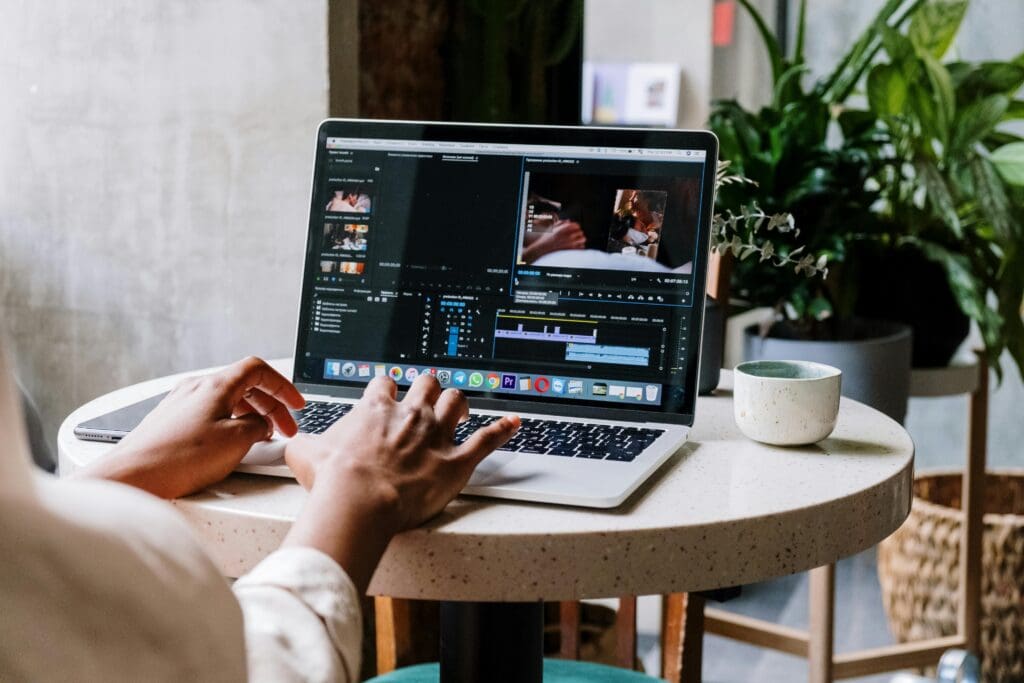
Which Video Editing Tool Should You Use?
If you already know what you’re looking for, you don’t need to read this guide from top to bottom. Here’s how I’d break it down based on how you create content:
Use Adobe Premiere if:
- You edit long-form videos or complex projects
- You need professional-grade editing tools
- You collaborate with teams or work on desktop + mobile
Adobe Premiere + Firefly if:
- You want AI-assisted editing to speed up workflow
- You create marketing videos or thumbnails with generative tools
- You need advanced retouching, color grading, or compositing
Final Cut Pro if:
- You’re a Mac user focused on professional video projects
- You want smooth timeline performance and fast rendering
- You edit cinematic videos or YouTube content
DaVinci Resolve if:
- You prioritize advanced color grading
- You want professional post-production tools for free or one-time purchase
- You work on both video and audio editing
CapCut or Edits by Instagram if:
- You create social media content primarily on mobile
- You need quick cuts, effects, and templates
- You post frequently to Instagram, TikTok, or Reels
Adobe Express (Video) if:
- You want simple, template-based video creation
- You’re creating marketing videos, promos, or social posts quickly
- You prefer drag-and-drop simplicity
Veed if:
- You want web-based editing without installing software
- You need fast subtitling, AI transcription, or team collaboration
- You’re focused on social media content creation with a fast turnaround
Pika if:
- You’re exploring AI-generated video
- You want to experiment with AI-assisted creation vs fully generative video
- You’re curious about the future of AI in video
Best Video Editing Tools in 2026 (Quick Picks by Category)
Just looking for quick answers? These are my top picks for video editing, depending on your skill level and goals.
| Category | Tool |
| Overall | Adobe Premiere |
| AI-Assisted Editing | Adobe Premiere + Firefly |
| Instagram-First Creating | ‘Edits’ by Instagram |
| Mobile App / TikTok-First Creating | CapCut |
| Free Beginner Tool | Adobe Express (Video) |
| Mac-Based Professional Editor | Final Cut Pro |
| Color-First Projects | DaVinci Resolve |
| Fast Social Media Editor | Veed |
| AI Experimentation Tool | Pika |

Best Overall Video Editing Tool
Winner: Adobe Premiere
Why it wins:
Adobe Premiere remains the most complete video editing platform for creators. It’s also the industry standard for professional video editing, and its growing AI toolset makes it both powerful and future-proof.
I love the Firefly-powered enhancements to audio, auto captions, and intelligent editing assistance. Premiere continues to offer unmatched flexibility for long-form, short-form, and brand-driven video workflows.
Premiere is most effective when editing is driven by story, not templates or automation.
Best for: Professional creators, YouTubers, brand teams, and anyone building a serious video workflow who wants maximum control with AI-assisted efficiency.
Best AI Video Editing Tool
Winner: Adobe Premiere (with Firefly integration)
Why it wins:
I briefly mentioned how Firefly is helping Premiere stay on top of video editing, but it’s truly the best AI-assistant that I’ve used so far. Rather than replacing your creative decision-making, Firefly simply enhances your real footage. Features like auto-transcription, caption generation, intelligent reframing, and Firefly-assisted visual enhancements allow creators to move faster while staying grounded in authentic video editing.
Best for: Creators who want AI to speed up editing, improve accessibility, and enhance footage without turning their workflow into “prompt-only” video creation.
Best Free Video Editing Tool
Winner: DaVinci Resolve (Free Version)
Why it wins:
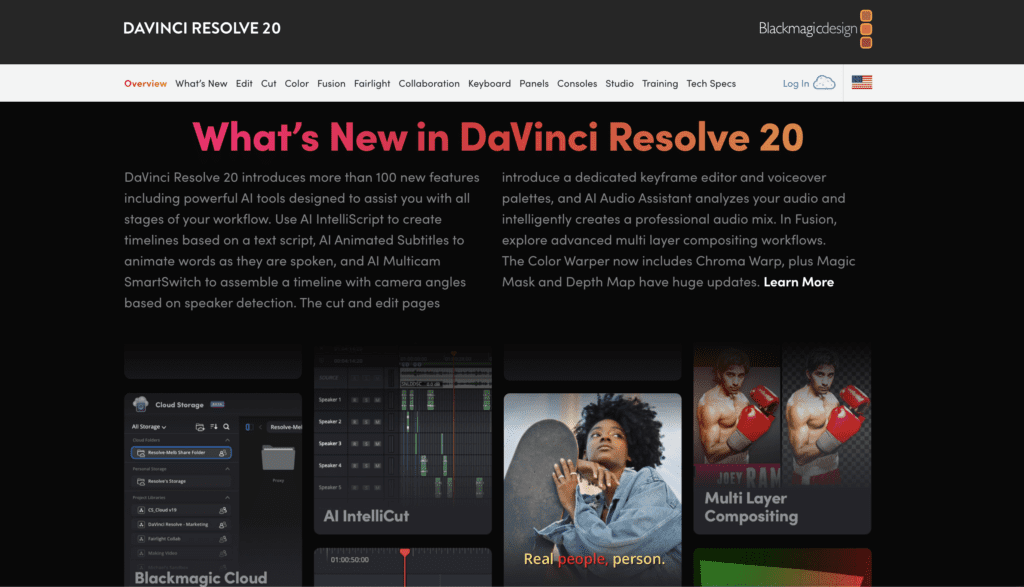
If you want professional video editing without a high price tag, DaVinci Resolve is a good option. It’s a lot more robust than most creators need (it’s often used with TV and cinema-level production projects), but they do offer a free version. So, if you have a lot of time to learn a new tool and you need to do professional grade color and audio correction, check out Resolve.
Best for: Creators, filmmakers, and editors who need to do a lot of color and audio correction.

Best for Mobile-First Editing
Winner: CapCut
Why it wins:
CapCut is not the ‘favorite’ tool it used to be, however it’s still a good user-friendly mobile video editor. It has an intuitive interface, built-in templates, and AI-powered features such as auto-captioning and background removal. It’s optimized for speed and social media platforms, not traditional editing timelines.
Best for: TikTok creators who prioritize fast turnaround and mobile-first workflows.
Best ‘In-App’ Video Editing Software
Winner: Edits by Instagram
Why it wins:
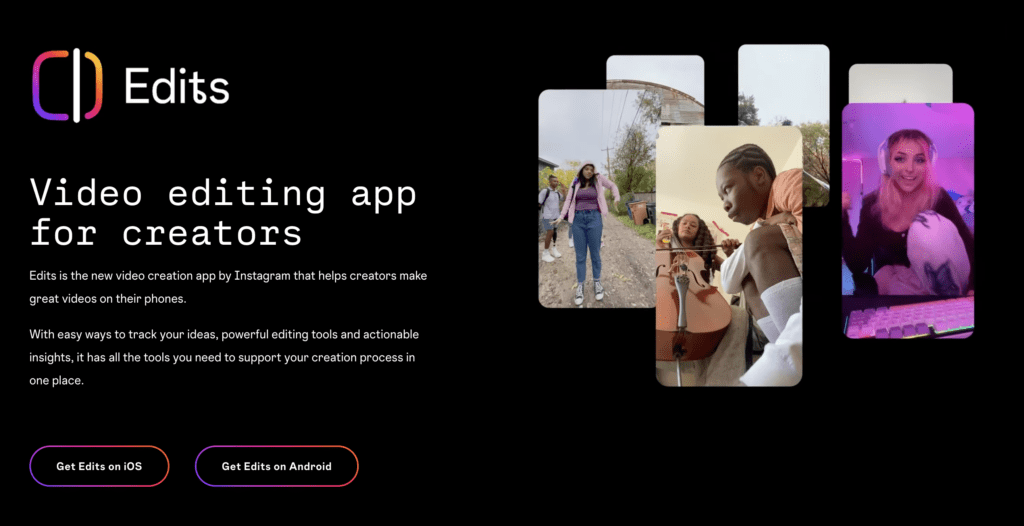
If you’re an Instagram-first creator, Edits is a great option for your short-form content. They’ve been constantly improving the interface to help you create faster, and with its integration with Instagram, you can add audio without ever leaving the app.
Best for: Instagram-first creators looking for quick, short-form edits.

Best for Quick & Easy Video Edits
Winner: Adobe Express (Video)
Why it wins:
While most Adobe products have a steep learning curve, Adobe Express strips video editing down to what creators actually need: fast trims, captions, resizing, and branded visuals. Its AI-powered tools make it easier than ever to create polished content, without opening a full editing timeline.
Best for: Creators, marketers, and small teams who want professional-looking videos quickly, without a steep learning curve.

Best AI Video Generation Tool
Winner: Pika
Why it wins:
Pika is not a video editing tool. But they are generative AI video tools I want to talk about in the context of this topic. These tools excel at creating video without footage from you. This means you can use them to create explainers, concept visuals, or educational content. They aren’t a replacement for video editors, but they can be powerful tools in specific use cases.
Best for: Educators, marketers, and creators who need explainer videos, prototypes, or AI-generated visuals rather than traditional edits.
Video Editing Tools Side-by-Side Comparison Table
| Tool | Best For | Skill Level | Platform | Starting Price | AI Features | Ideal Use Case |
| Adobe Premiere | Overall / Pro creators | Advanced to Professional | Desktop (Mac, Windows) | $22.99/month | Auto captions, AI scene detection, Firefly-powered generative edits | Professional editing for YouTube videos, brand campaigns, documentaries, and long-form content |
| Adobe After Effects | Motion graphics, compositing, and visual effects | Advanced to Professional | Desktop (Mac, Windows) | $22.99/month | AI rotoscoping, generative fill for video, motion tracking | Advanced animations, title sequences, visual effects, and compositing |
| Adobe Express (Video) | Fast social media editing and branded videos | Beginner | Web, Mobile | Free plan / $9.99 month Premium | AI text-to-video, auto resizing, generative design elements | Quick marketing videos, social media content, and simple branded edits |
| Final Cut Pro | Mac-based professional editing | Advanced | Desktop (Mac) | $299.99 one-time | Smart organization, AI-assisted scene detection, automatic syncing | High-performance editing for Apple creators and YouTubers |
| DaVinci Resolve | Color grading and cinematic video production | Professional | Desktop (Mac, Windows, Linux) | Free / $295 one-time for Studio | AI color matching, facial recognition, smart reframing | Cinematic editing, professional color grading, film and commercial production |
| CapCut | Short-form social media creators | Beginner to Intermediate | Mobile, Desktop, Web | Free / $9.99 month Pro | Auto captions, AI templates, background removal | TikToks, Instagram Reels, YouTube Shorts, and fast-turn social video |
| Veed | Marketing teams and browser-based editing | Beginner to Intermediate | Web | Free / from $18 month | Auto subtitles, AI voice cleanup, text-based editing | Quick marketing videos and explainer content without installing software |
| Edits by Instagram | Instagram-native content creators | Beginner | Mobile | Free | Auto captions, smart trimming, AI performance insights | Fast Instagram Reels editing directly within the Instagram ecosystem |
| Pika | AI video generation and visual experimentation | Beginner | Web | Free plan / Paid tiers | Text-to-video generation, AI scene creation, animation tools | Concept videos, AI-generated visuals, and experimental creative content |
Best Video Editing Tools in 2026 (Quick Answer)
- Best Overall: Adobe Premiere
- Best AI-Assisted Editing: Adobe Premiere + Firefly
- Best Free Beginner Tool: ‘Edits’ by Instagram
- Best Mobile App: CapCut
- Best for Beginners: Adobe Express (Video)
- Best for Mac Users: Final Cut Pro
- Best for Color Grading: DaVinci Resolve
- Best Social Media Editor: Veed
- Best AI Experimentation Tool: Pika
Individual Video Editing Tool Reviews (Deep Dives)

Adobe Premiere
What it is
Adobe Premiere is the industry-standard professional video editing software. It’s widely used by filmmakers, YouTubers, brand teams, and editors seeking creative depth and flexibility. Premiere offers a powerful multi-track timeline with professional tools for cutting, trimming, effects, audio mixing, titles, and motion graphics. You can do all of this (and more) within a comprehensive editing workspace. Premiere is part of the Adobe Creative Cloud, which means it also integrates seamlessly with Photoshop, After Effects, and other Adobe tools, giving you a full production ecosystem.
Who it’s best for
Premiere is ideal for any intermediate to advanced creators who want maximum control over their videos, need professional or cinematic workflows, and anticipate scaling from YouTube videos to client or brand work.

Key features
- Multi-track timeline editing with unlimited layers
- Comprehensive effects, transitions, and graphics tools
- Robust audio tools and audio mixing
- Auto reframe for adapting aspect ratios (e.g., landscape to vertical)
- Advanced color grading and Lumetri Color tools
- Text-based editing and rough cut generation from transcripts

AI capabilities
Premiere uses AI in multiple ways, including Auto Reframe, scene edit detection, speech-to-text transcription and captions, AI-powered search, and the new Generative Extend feature. This last uses Adobe’s Firefly generative AI to extend clips and ambient audio, offering smart tools that save hours without ever sacrificing your creative control.
Platforms
Desktop (Windows and macOS), with Adobe also expanding Premiere to support mobile use.
Pricing
Premiere is subscription-based, starting around US$22.99/month for individuals; Creative Cloud bundles that include Premiere and other apps range higher with added AI credits and tools.
Strengths
- Unmatched toolset for professional storytellers
- Deep integration with Adobe’s ecosystem
- AI features that speed workflows without replacing decision-making
- Huge library of tutorials and community support
Limitations
- Steep learning curve for beginners
- Subscription cost can be a barrier
- Requires substantial computing power for heavy projects
When to use it
Adobe Premiere is the best for long-form projects, brand campaigns, YouTube editing workflows, and creators who plan to grow into professional or client work (especially when consistent quality and creative control matter).
Adobe After Effects
What it is
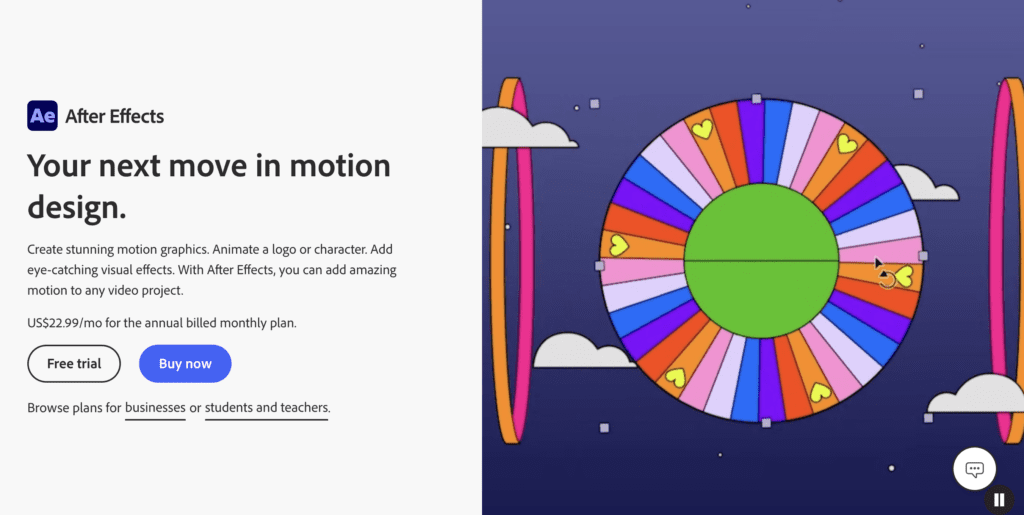
Adobe After Effects is another industry-leading tool, this time for motion graphics and visual effects. Unlike traditional editors, After Effects specializes in compositing, animation, text effects, special effects, and motion design. It’s a creativity powerhouse, and I’ve seen some creators use After Effects in some really unique ways. It’s designed to work alongside tools like Premiere, bringing advanced visual elements that elevate a video beyond just cuts and trims.
Who it’s best for
Similar to Premiere, I would say that After Effects is best for intermediate to advanced creators, as well as motion graphic designers and professional editors who need effects, titles, animated infographics, and eye-catching visuals.AI in multiple ways, including Auto Reframe, scene edit detection, speech-to-text transcription and captions, AI-powered search, and the new Generative Extend feature. This last uses Adobe’s Firefly generative AI to extend clips and ambient audio, offering smart tools that save hours without ever sacrificing your creative control.

Key features
- Complex keyframe animation and motion control
- Particle systems, 3D layers, and visual effects
- Text animation presets and custom typography animation
- Integration with Cinema 4D for 3D compositing
- Pipeline workflow with Premiere for dynamic linking
AI capabilities
While After Effects itself isn’t packaged as a standalone “AI editor,” Adobe continues to integrate AI enhancements across animation workflows and to enhance playback performance, particularly through improved caching and playback previews. These help achieve smoother workflows and faster iterations.
Platforms
Desktop (Windows and macOS) as part of Adobe Creative Cloud.
Pricing
Included in Creative Cloud subscriptions, which also include Premiere, Photoshop, and other apps.

Strengths
- Unmatched motion graphics tools
- Deep customization for animations and effects
- Works seamlessly with Premiere for enhanced storytelling
Limitations
- Not a video editor on its own, it still needs Premiere or similar for full projects
- Steep learning curve for beginners
When to use it
Adobe After Effects is the perfect tool for high-end visuals, animated titles, or motion design that goes beyond basic editing. You’ll want it especially for cinematic intros, lower thirds, or branded visuals.

Adobe Express
What it is
Adobe Express is an awesome tool that I’ve been using a lot more in my own business. You can use it for photo editing and graphic design as well, because it’s a simplified design and video editing platform. If you love Adobe and want to handle quick, on-the-go edits, Adobe Express is the tool you’re looking for. It includes drag-and-drop editing, templates, and design tools that help you finish your projects faster.
Who it’s best for
The best thing about Adobe Express is that it’s a great tool for beginner and intermediate creators, social media managers, small teams, and anyone who wants quick, branded content without diving into a bigger tool like Premiere. And when you use the Adobe Creative Cloud in your business, all of your content and edits can live in one easy place.

Key features
- Drag-and-drop video editing
- Branded templates for social content and marketing
- Timeline trimming and split tools
- Background removal and simple motion tools
- Auto clip generation and enhanced caption tools
AI capabilities
Adobe Express uses Adobe’s Firefly AI for features like text-to-video generation, background removal, clip segmentation, and caption improvements. With Adobe Express and Firefly, it’s easy to produce videos with AI-assisted help.
Platforms
Web and mobile, with cross-platform editing and simple export for social formats.
Pricing
Free tier available; premium subscription unlocks more templates, assets, and higher export flexibility. It’s also included in some Creative Cloud plans.
Strengths
- Extremely easy for beginners
- Great for rapid social video production
- Affordable relative to pro editors
Limitations
- Limited control compared with professional editors
- Not ideal for long-form storytelling
When to use it
I recommend Adobe Express for daily social content, quick marketing videos, promotional reels, and anyone who needs a polished video without a timeline learning curve. It’s also a great beginner tool if you’d like to eventually move on to Premiere.

Final Cut Pro
What it is
Final Cut Pro is Apple’s professional video editing software that’s been designed for macOS. It’s known for being a powerful but intuitive tool with a magnetic timeline and high performance on Apple devices. Keep in mind that it’s a great tool if you use Apple and plan to continue using Apple. If you don’t have a MacBook, you can skip this section altogether.
Who it’s best for
Creators who use Macs and want a professional editing solution without ongoing subscription costs.

Key features
- Magnetic timeline for intuitive editing
- Support for multi-cam editing and unlimited tracks
- 360° video editing and advanced audio filters
- Wide format and codec support, including 8K

AI capabilities
While Final Cut doesn’t market heavily on AI, Apple has introduced features like automatic background noise reduction and smart color tools that assist workflows. It’s known more for performance optimization than direct generative features.
Platforms
macOS only.
Pricing
One-time purchase (~$299.99), with no subscription required. I will say, I actually love this about Final Cut Pro: once you purchase it, you have access forever (at least for now, who knows if they’ll change that one day).
Strengths
- Fast performance, especially on Apple Silicon
- Professional editing tools without a subscription
- Strong ecosystem with Motion and Compressor
Limitations
- macOS only
- Fewer native AI features compared to Adobe
When to use it
Best for Mac-based creators who want pro tools, fast performance, and a lifetime purchase rather than recurring subscription costs.

DaVinci Resolve
What it is
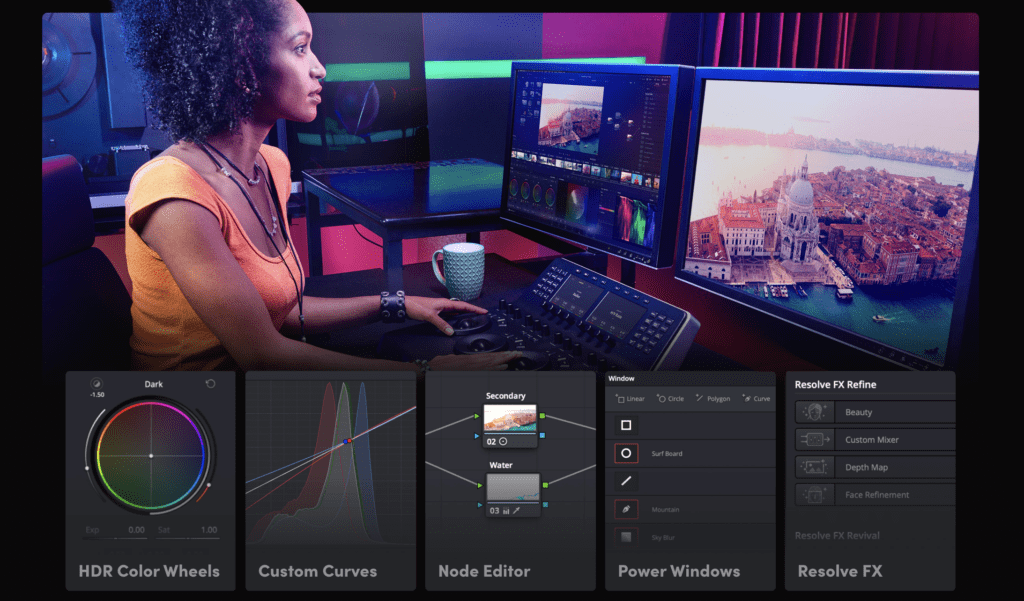
DaVinci Resolve is another professional video editing software that can handle color grading, audio post-production, and visual effects. It was created by Blackmagic Design, and what makes Resolve unique is that it combines editing, color, audio, and effects into a single application. It’s especially well known for color correction and color grading, and it’s used in film, TV, and high-end commercials. It also has an actually valuable free plan, not just a stripped-down version of the paid plan.
Who it’s best for
DaVinci Resolve is best for professional editors, and filmmakers who care deeply about color accuracy, cinematic visuals, and post-production quality. It’s also a great option for creators who want professional tools without paying for a subscription upfront, thanks to its powerful free version.
Key features
- Multi-track timeline editing with professional trimming tools
- Industry-leading color grading workspace (nodes, scopes, LUTs)
- Built-in Fairlight audio editing and mixing tools
- Fusion visual effects and compositing
- Multi-camera editing and proxy workflows
AI capabilities
DaVinci Resolve includes AI-powered features like magic masking, object tracking, smart reframing, speech-to-text, and auto scene detection. These tools help speed up complex workflows (like isolating subjects or automating cuts) without automating your creative decisions.
Platforms
Desktop (Windows, macOS, Linux)
Pricing
- Free version (extremely robust and valuable)
- DaVinci Resolve Studio: One-time purchase (~$295)
Strengths
- Best-in-class color grading
- No subscription required
- Professional-level tools on one platform
- Free version suitable for serious work
Limitations
- Steep learning curve
- Heavy system requirements
- The interface can feel overwhelming for beginners
When to use it
Use DaVinci Resolve when color quality matters most. You’ll want to use Resolve for cinematic YouTube content, brand films, commercials, or any project where visual polish is your priority.
CapCut
What it is
This is likely a tool you’ve heard of and maybe even used! A few years ago, it felt like CapCut was the most popular tool for content creators, especially on TikTok. CapCut is a mobile-first, social media-focused editor that was developed by ByteDance (the parent company of TikTok). It’s designed for speed, accessibility, and trend-driven content creation, which is why it quickly became the most widely used tool for short-form creators.
Who it’s best for
CapCut is a great tool for beginners; it doesn’t have a huge learning curve, and there are lots of online tutorials that can help you make interesting edits very quickly. If you’re a TikTok or Instagram Reel creator or anyone who wants to edit quickly, this tool is perfect for you.
Key features
- Drag-and-drop timeline editing
- Trend-based templates and transitions
- Auto captions and text animations
- Music syncing and sound effects
- Aspect-ratio presets for social platforms

AI capabilities
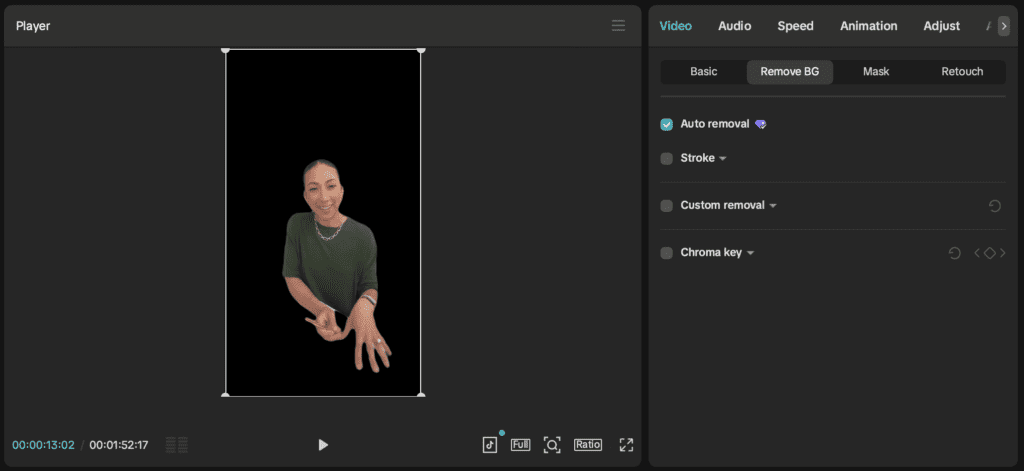
CapCut leans heavily into AI with auto captions, background removal, AI voiceovers, beat syncing, smart cutouts, and one-tap style templates. These tools prioritize speed and virality rather than granular control.
Platforms
Mobile (iOS, Android), Desktop, Web
Pricing
- Free version available
- Paid Pro tier unlocks advanced assets and effects

Strengths
- Extremely easy to use
- Optimized for short-form content
- Fast turnaround for daily posting
- Strong AI automation
Limitations
- Limited creative control
- Not ideal for long-form or professional projects
- Template-driven output can feel repetitive
When to use it
I recommend CapCut for daily social content, trending content, and creators who want fast edits without overthinking timelines or technical details.

Veed
What it is
Veed is a video editing platform that’s completely ‘browser-based’, which means you open it on a website and edit directly there. It’s another tool that’s designed for quick edits, captions, and marketing-style video content. Veed focuses on accessibility, collaboration, and fast exports, which make it especially good for small teams working remotely.
Who it’s best for
Veed is best for content marketers, educators, coaches, and social media teams who need clean, captioned videos without the complexity of professional editing.

Key features
- Timeline editing in the browser
- Caption and subtitle tools
- Screen recording and webcam capture
- Templates for social and educational videos
- Team collaboration features
AI capabilities
Veed includes AI tools like automatic subtitles, speech-to-text, background noise removal, and script-to-video features. These are focused on accessibility and speed rather than creative experimentation.

Platforms
Web-based (no desktop software required)
Pricing
- Free tier with watermarks
- Paid plans unlock exports, captions, and brand kits
Strengths
- No software installation
- Excellent captioning tools
- Great for educational and talking-head content
- Easy collaboration
Limitations
- Limited timeline depth
- Performance depends on the browser and your internet connection
- Not suitable for cinematic or complex edits
When to use it
Use Veed when captions, clarity, and speed matter more than polish, especially for educational content, webinars, and social videos.
Edits by Instagram
What it is
Edits by Instagram is Meta’s native video editing app that was built specifically to support short-form video content for Instagram Reels. Unlike third-party editors, Edits was designed to work seamlessly within Instagram’s ecosystem. It offers creators a streamlined way to edit, enhance, and publish videos without leaving Instagram.
Rather than competing with professional editing software, Edits focuses on speed, simplicity, and platform optimization. It’s not trying to replace tools like Premiere, it’s meant to help creators move quickly, stay consistent, and publish content that performs well on Instagram.

Who it’s best for
Edits is best for mobile-first creators, Reels-focused accounts, and anyone prioritizing Instagram growth over cinematic production. It’s especially useful for creators who already film vertically on their phone and want a fast editing workflow that doesn’t interrupt posting momentum.
Key features
- Native Reels editing timeline
- Built-in transitions and effects optimized for Instagram
- Text overlays and caption styling
- Music and audio integration directly from Instagram’s library
- Performance insights tied to Instagram content
AI capabilities
Edits includes AI-powered features such as auto captions, smart trimming, visual enhancements, and recommendations based on Reels performance trends. While these tools are lighter than standalone AI editors, they’re tightly aligned with what performs well on Instagram, prioritizing watch time, clarity, and engagement.
Platforms
Mobile (iOS, Android)
Pricing
Free (included with Instagram)
Strengths
- Fully integrated with Instagram
- No export/import friction
- Optimized for Reels performance
- Extremely beginner-friendly
Limitations
- Limited creative control
- Not suitable for long-form or horizontal video
- Few advanced editing or layering tools
When to use it
Edits is best used when speed and consistency are your top priority. It’s ideal for daily Reels, trend participation, quick updates, and creators who want to reduce friction between editing and publishing.

Pika (AI Video Generation)
What they are
Similar to my photo editing and AI post, I wanted to include a tool that focused solely on AI video generation, because you will be seeing more and more of these pop up. Pika represents this new category of tools: AI video generation platforms. Instead of editing footage, these tools generate videos from text prompts or scripts, and often use AI avatars or generative visuals.
Who they’re best for
Best for marketers, educators, internal teams, and creators who need video content without filming or editing.

Key features
- Text-to-video generation
- Generative visual scenes
- Script-based workflows
- Fast output for explainer-style content
AI capabilities
These tools are AI-first by design. They use generative models to create visuals, avatars, narration, and scenes (dramatically reducing production time). However, creative control is more limited than with traditional editors. And they do not replace traditional editors.
Platforms
Web-based
Pricing
Subscription-based, typically priced for business or marketing use cases
Strengths
- No filming or editing required
- Extremely fast content production
- Scalable for teams and training
Limitations
- Not true video editing tools
- Limited creative flexibility
- Output can feel generic
When to use them
Use Pika when a video is needed for education, internal training, or simple explainers, not storytelling or brand-driven content. You always need to be very careful using any AI-generated content online, especially in brand collaborations.

How to Choose the Right Video Editing Tool for You
So, with all this information, how do you begin choosing the right video editing tool for you? As I said at the start of this post, it all comes down to the project that you are working on, and as a content creator, you’ll likely be jumping around between projects and software. If you’re a beginner and want to focus on growing your Instagram or TikTok following, I recommend starting with CapCut and Edits. But, if you want to launch your YouTube Channel, it might be time to start learning a platform like Adobe Premiere.
If you’re still not sure what video editing tool is right for you. Here are some things you can do to help you decide.
Ask Yourself These Questions
- Are you editing real videos or creating videos from scratch?
- Do you need speed or precision?
- Mobile or desktop?
- Hobby or professional?
- Budget constraints?
Best Video Editing Tools by Creator Type
| Creator Type | Tool Recommendation |
|---|---|
| Instagram creators | CapCut, Edits by Instagram |
| Travel vloggers | Adobe Premiere, DaVinci Resolve |
| YouTubers / Filmmakers | Adobe Premiere + Firefly |
| Designers / Marketers | Adobe Express (Video), Veed |
| Small business owners | Adobe Express (Video), CapCut |

AI in Video Editing: What It’s Actually Good At (and What It’s Not)
AI is quickly becoming a part of modern video editing, but it’s important to understand where it actually adds value and where your human creativity still matters most. Not all AI video editing is the same, and knowing the difference can help you work faster, without losing control of your content.
Assistive AI vs. Generative AI
Most creators benefit most from video-assistive AI, not fully generative tools. Assistive AI works with your footage to speed up technical tasks such as auto captions, transcript-based editing, background noise removal, and more. These tools aren’t replacing your creative decisions; they’re simply removing friction from your editing process.
Generative AI, on the other hand, creates video elements from prompts rather than real footage. This can be useful for explainer videos, concept visuals, or placeholder content, but it’s not a replacement for authentic, creator-led video. For most content creators, generative AI works best as a supplemental tool rather than a primary editing workflow.
Speed vs. Creative Control
AI excels at speed. It can dramatically reduce your editing time, especially for repetitive tasks. The tradeoff is that the more automated the tool, the less control you often have. That’s why professional editors tend to use AI inside traditional editing software, rather than relying on AI-only platforms.
Where Creators Still Matter Most
AI can’t replace storytelling, pacing, tone, or personal style. It doesn’t understand context, nuance, or why a moment matters emotionally. Those decisions still come from you. The strongest content uses AI to handle the busywork, while creators focus on narrative, performance, and connection.
Ethical + Creative Considerations
As AI becomes more powerful, transparency and originality matter more than ever. Using AI to enhance real footage is very different from passing off fully generated content as authentic. The most sustainable creator workflows use AI as a support tool, not as a shortcut around creativity.
Used intentionally, AI can make you a faster, more efficient editor. But your perspective, voice, and creative judgment will always be the most valuable part of the process.

Common Mistakes Creators Make with Video Editing Tools
Overusing AI
This is by far the most common mistake that I see with photo and video editing with AI tools. AI should support your edits, not overpower them. If you rely too heavily on automated effects, transitions, or AI-generated videos, your content will start to feel generic or disconnected from your voice. If AI starts making creative decisions for you, it’s doing too much.
Choosing Tools That Are Too Complex
More features don’t automatically mean better results. I’ve seen many creators slow themselves down by using professional-grade software they don’t actually need. If a tool feels too intimidating or adds friction to your workflow, it’s not the right fit (at least not yet).
Ignoring Workflow Efficiency
The best video editing tool isn’t about the final output; it’s about how quickly and consistently you can create. Tools that don’t fit your cadence, platform, or editing style often lead to burnout, even if they’re technically powerful.
Paying for Tools You Don’t Need
Subscriptions can add up fast. Before choosing to upgrade to a new tool, ask yourself whether you’re actually going to use the features you’re paying for. I always encourage my students to build up momentum with free or entry-level tools before investing in more advanced software.

Frequently Asked Questions About Video Editing & AI Tools
Do I need AI tools to be a successful content creator in 2026?
No, but they can help. Using AI isn’t a requirement, but these tools can save time, reduce friction, and support consistency when you use them intentionally. And I do think that creators who ignore or refuse to use AI will get left behind.
Is AI replacing video editors or creators?
Definitely not. AI is best used as an assistive tool, not a total replacement. Professional video workflows are most effective when editing, AI, and production tools are integrated. The creative decisions, storytelling, and on-camera presence need to come from the creators themselves.
AI in video editing is most valuable when it enhances real footage rather than replacing it.
What’s the best video editing tool for beginners?
The best beginner video editing tool is the one that feels intuitive and doesn’t slow you down. Mobile-first editors and simplified desktop tools are often the easiest place to start.
Can I use AI-generated video content for brand work?
It depends on the brand and the use case. Many brands prefer real footage for partnerships, while AI-generated visuals are better suited for concepts, explainers, or internal content.
Should I switch video editing tools as I grow?
Switching tools as you grow is completely normal. Many creators start with simple tools and transition to more advanced software as their workflow, goals, and content evolve.
Is it better to use one editing tool or multiple?
Most creators use more than one. One tool for quick edits, another for long-form or brand work, and AI tools layered in where they actually save time.

The Best Video Editing Tool Is the One That Fits Your Workflow
At the end of the day, the best video editing tool is the one that fits your workflow. It’s the tool that best meets your needs as a creator. The one that helps you create without friction, on the platform you want to create on, in the season of business and life that you’re in.
Tools will evolve and change as your creator business grows, as you expand to create on more platforms, and as new tools become available.
There have been points in my creator journey where I’ve used almost every single one of these tools (and more). My team is always editing between Adobe Creative Cloud, CapCut, and even Edits when I just want a quick Instagram reel put together.
Final Verdict
The best video editing tools depend on your workflow:
- Adobe Premiere + Firefly → best for full editing and AI workflows
- CapCut / Edits → best for fast mobile content
- DaVinci Resolve → best for color grading
- Final Cut Pro → best for Mac workflows
For most creators, Adobe remains the foundation, with other tools layered around it. My biggest reminder is to choose the tool that’s best for you, not the tool that gets the most hype online. With so many tools to choose from, don’t be afraid to try them all and find what works best for you.
If you need some help picking a photo editing tool, make sure to read this post next.
I’ll see you in the next one, follow your joy!





Be the first to comment